Incoming Referrals
Create a Referral
End Involvement with Client
Related Links


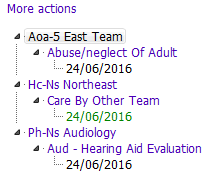

* Click the purple italicized headings for more information
Referrals are like intake forms to a team however the referral form in PARIS remains open for the duration of the service provided.
Without a referral that is owned by your team, you will get a message that you are not involved with the client. See the Restricted Caseload article.
- Guidelines tell you which referral to create for which service.
Incoming Referrals
Referrals new to your Team can be viewed in Duty Desk or in the Outstanding Referrals section of Team Caseload. If you belong to multiple Teams, it is suggested that you use Outstanding Referrals as you can choose to look at specific Teams, while Duty Desk shows you all of your Teams.
- Incoming Referrals:
- Allocate from Duty Desk
- Allocate from Team Caseload (Outstanding Referrals)
- Involved with Client
- Allocate a Referral - using Perform Allocation button
- Allocate Using Actions Taken Grid
- Allocate Using Involved Staff Grid
Create a Referral
There are two ways to create a new referral, log a referral  or copy an existing referral
 . Both buttons are on the Referral tool bar shown above.
A Referral could be created by the team that provides the service or by another service. In some cases a Referral is created by an Intake team or person. If a referral is not created by the team who provides the service, the referral is passed to the team that will provide the service.
- Log a referral for your team
- Create/Copy a referral to another team
- Create/Copy a referral to another discipline within your own team
- Referral Actions: Pass Ownership
End Involvement with Client
- End Allocation
- End Association
- Discharge a Referral
The Referral application has an Options Tree as shown on the left. Click More actions and select 'Expand all levels' to view all assessments. also see Navigating the Referral Form

All referrals have a Details section at the top of the referral. The Header Details section contains information about the who, what, where and when. Who do they approach for care (e.g. Mental Health), what service are they receiving (Referral Reason e.g. Adult Intake), what team will they receive care from (e.g. MH-TKitsilano), when did service start (Date of Referral), who referred them (Referral Source, e.g. Internal Team-Tertiary MH).

A referral can be printed by clicking the  button in the Print Form section
Related Links
Allocate a Referral
Allocation Status
Discharge a Referral
Organize the Options Tree
End Involvement
Referral Menu Buttons