Step 1: Copy the Referral
Step 2: Update the Copied Referral
Step 3: Pass Copied Referral to Receiving Team
- The
 button allows you to copy Open and Closed Referrals to any team you’re a member of
 - You can copy a referral to yourself, a Discipline WITHIN your Team, or another Team/Program. You CAN pass a Referral to a team you are NOT a member of
- If you Copy a Referral to a Team that uses a different Referral Type, you must change Referral Type in the Copy Referral window!
To create a referral for another PARIS community team to provide a service, you copy your referral. After tailoring the copy, you pass the copied referral to the other PARIS team. When you do not have a referral to copy, please see Log a New Referral.
In the copied Referral, change the:
- Referral Reason
- Source
- Priority
Step 1: Copy the Referral
1. In the Referrals Application, open the Referral you wish to copy.
2. Click the  button in the Referral toolbar and select Copy Referral for Client.

3. The Copy referral window appears. Use the Owner Key Lookup box to select your team:
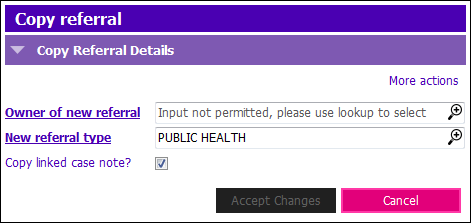
- Untick the Copy linked case note if you do not want to copy the original Referral Casenote.
If a Referral Casenote does not exist, you will not see the tick box. - Owner of new referral: Click the
 or press F4 to locate and select YOUR team, not the team you are sending the referral to.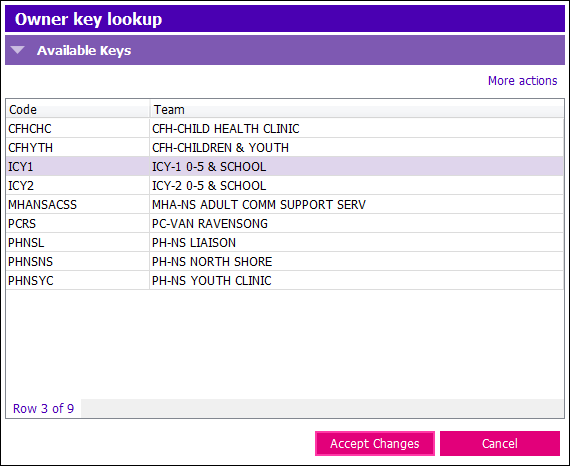
 When you do not select your team, you are not be able to pass the referral to the other team.
- If you’re only a member of one team, the Owner Key lookup will NOT appear
4. Double click on your Team, the Copy Referral window will appear:
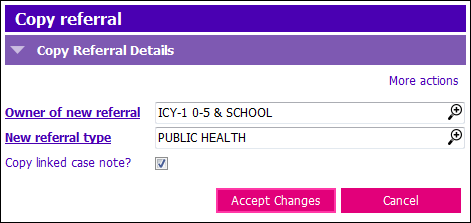
- New referral type: The original Referral Type defaults into the field. Make sure to change the Referral Type if the receiving Team is from another program!
- If you miss this step, you can’t go back. Make sure you have the right form!
- Referral Casenote will copy over if you leave the tick mark in the ‘Copy linked case note?’ tick box
5. Click Accept Changes or press enter. The Referral will copy and open in the copy.
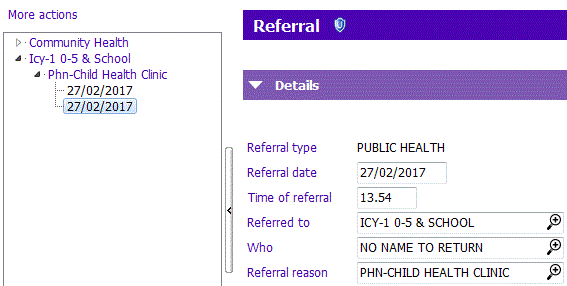
At this point both the original referral and the copied referral display under your team. Since you have not yet changed the Referral Reason, the referral you are copying displays under the original referral reason.
Step 2: Update the Copied Referral
Your focus opens in the “copied Referral”
1. Complete details or sections pertinent to receiving team, update Referral Casenote as necessary and update the mandatory fields in the Referral Details section.
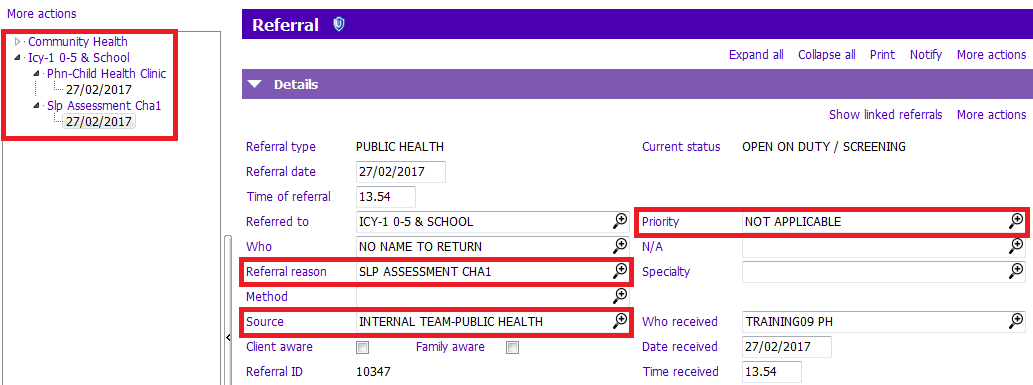
Referral Date: The current date will be entered but can be changed if applicable.
Referred to: Your Team name will be defaulted. If you are referring to another team, continue following these steps, changing the Referral details as directed. Ensure Step 3: Pass Ownership is completed, otherwise the other team will not receive your Referral.
Referral Reason:
Change Referral Reason to appropriate reason. Start to type the reason and double-click the appropriate reason for the predictive text list or type the code and press tab.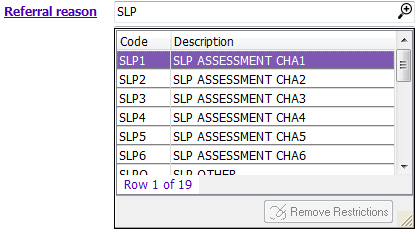
Source:
Select the appropriate Referral source (e.g. internal team member, physician, associated person). Typically the source is an Internal Team (choose appropriate Program, e.g. INTERNAL TEAM-MHA)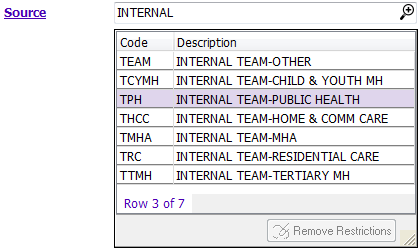
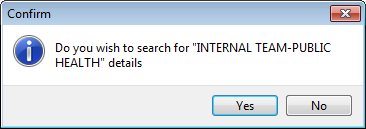
a. For many source options, a Confirm box appears; asking if you wish to search for details. Click Yes to continue selecting your team and the person referring the client.
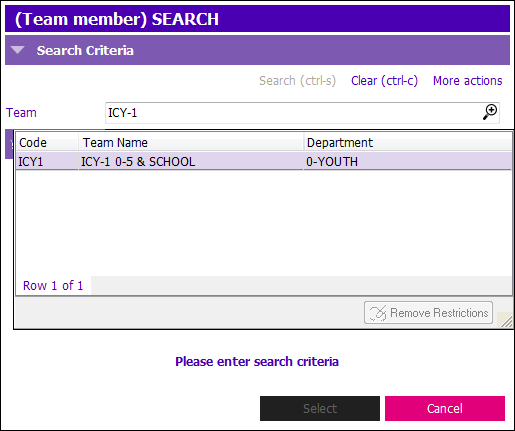
b. Start to type the team in the Type and Find box and double click on the team.
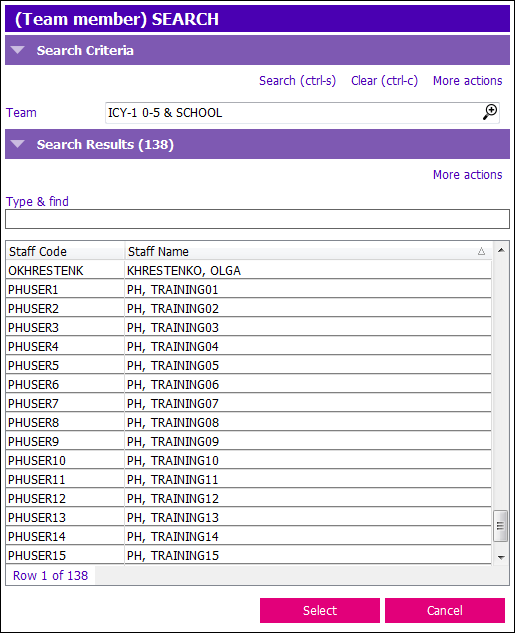
c. Click Search to view team members for that team and then select the team member who is the source of the referral.
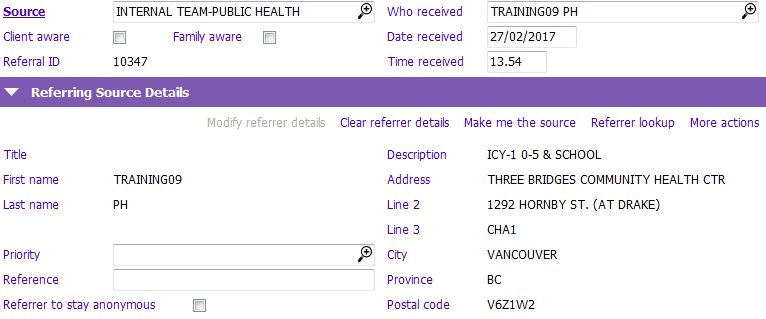
d. Once you select the source, the information is pulled into the Referral Source section. Tick the Client and Family aware boxes as per your program guidelines.
Priority:
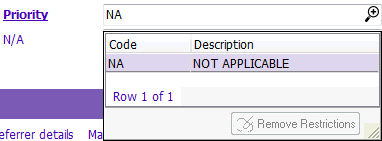
Change priority to appropriate priority for receiving Team as per program guidelines.
2. Complete all other relevant sections of the Referral form following your team's guidelines.
3. Click Save or press F12. After the referral is saved, the Options Tree displays the referral with the correct Referral Reason. When you save the referral, you should see it under your own team.
4. If you wish to enter a referral casenote, click on the  button in the Referral toolbar.
5. Change the Referred to field to the team you need to send the referral to.
Step 3: Pass Copied Referral to Receiving Team
NOTE: This is done if referring client for service at another Community Team within PARIS.
| The referral needs to be created in your team with your team as the owner (Referred To) for new and copied referrals and Owner of new referral for copied referrals. If you do not select your team, you will not see the Pass Ownership referral Action Type. |
1. Save the referral in your team and then change the Referred to field to the new team
2. Ensure you have completed all information in the Referral form, including Referral Casenotes
3. Follow the steps in Pass Ownership