Allocate Referral using Perform Allocation Button
Other ways to Allocate a Referral
Allocating using the Perform Allocation button can be used to allocate the first staff person to the referral. If the referral has not yet been allocated it will say ‘Open on Duty / Screening. Once the client's referral has been allocated, the Referral Status changes to Allocated. You will need to use the Involved Staff grid in a few different applications such as Team Caseload or use the Actions Taken grid at the bottom of the referral form.
Allocate Referral using Perform Allocation Button
1. View the client's referral for your team.
2. Open your Team Referral
3. Click the beside your Team name in the Referral Options Tree
4. Click the last branch under your Team name
5. Click the  in the Referral toolbar.
6. Complete the Type of Allocation and Status fields as per your Team workflow or guidelines.
7. Press enter or click Accept Changes.
8. After pressing Enter once, you can allocate other staff via the Allocation Details grid by inserting a row.
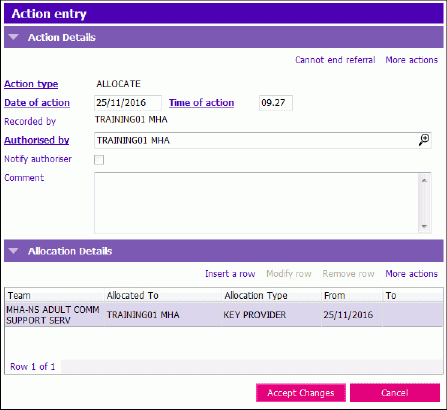
9. Press enter again then press F12 to Save.
The button is no longer available as the Referral Status is now Allocated.