Copy/Create a Subsequent Assessment
Create a New Assessment
Mark Assessment Entered in Error
NSS At Home Program
NSS Delegated Care
NSS Direct Care Services
Paediatric Rehab Assessments
Print Assessment
NSS Direct Care Services
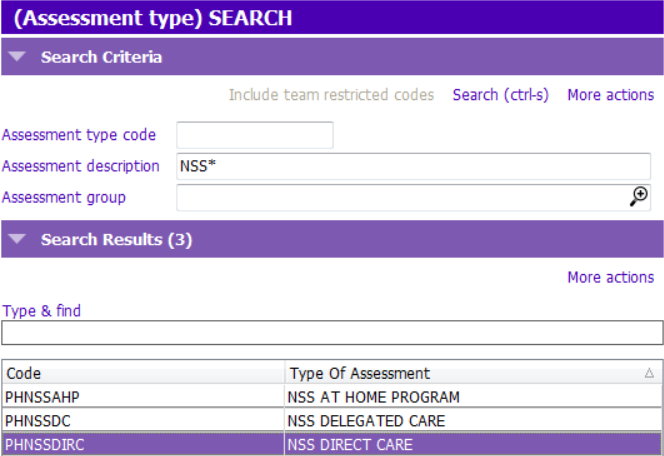
Assessment Description: Select NSS Direct Care
Details tab
Header Details
 Date Started: Enter date
Reason for assess: Select the type of assessment:
 Initial Assessment (displays on report as New Presentation)
Final Assessment
Appeal
Re-Assessment
Annual Assessment
Additional Information
Assessment Date: Enter date
Referral Date: Displays the referral date that the assessment is attached to
Select whether this assessment is a Change in Hours and/or School Hours
Name of Parent/Guardian:
Click Add another Parent/Guardian button to add additional parents/guardians. A maximum of 3 parents/guardians can be entered.
If Display Parent/Guardian information on report is left unticked, the Parent/Guardian information will not display on the report printout.
Diagnosis/Nursing Care Needs
Diagnosis Information
 Tip: Report displays:
Current diagnoses as a bulleted list. Resolved and No longer valid diagnoses are excluded.
Diagnoses with Primary Diagnosis ticked display in the Primary Diagnosis section with the status in brackets.
Diagnoses with Primary Diagnosis unticked display in the Secondary Diagnosis section with the status in brackets.
Current Nursing Care Needs
Reassessment Date: ability to enter the actual date or free text (e.g. in 6 months)
Current Health History
Current Health History
Note, the Recommendations section is not included in the PARIS assessment.
Paediatric Equipment
Tip: Report displays current equipment items as a bulleted list and how often required (frequency) adjacent to the equipment item (e.g. Walker – Daily).
Medications
Tip: Report displays current medications including the dose, frequency, and route.
System Summary
Allergies / Adverse Reactions
Allergies can be entered and updated within the assessment or in the Client Banner.
Systems Summary
Each system summary section displays a maximum of 10 lines. To enter in full screen mode and to utilize functionality similar to MS Word, right click in the text box and select Full Screen. Tip: Do not enter your username date/time stamp (ctrl-T) as it will display on the report printout.
Rationale for Hours
Rate each factor (e.g. Low, Moderate, High)
Tick the five factors with the highest priority
Submit/Outcome
Submit/Outcome
Submitted: Tick upon completion of the assessment. All of the sections within the assessment will become read-only except for Header Details, Outcome of Eligibility Meeting, and Recommendations.
Outcome of Eligibility Meeting: Enter the Home Hours Allocated, School Hours Allocated, and Approval Date after the committee meeting.
Recommendations
Clinicians have the ability to upload the Presentation Notes and/or a Letter.
To upload Presentation Notes:
1. Tick Presentation Notes
2. Click Attach File button
3. Highlight the file in your H drive (H:). Click Open. The name of the file displays adjacent to the Presentation Notes label.
4. Click Save. The View File button displays. Click View File to display the document.
Follow the above steps to add a Letter.Tip: The system does not allow duplicate file names. Please use the following naming convention when saving the document to your H drive (H:): date, description of uploaded document, initials (e.g. 2021-01-12_LOJ_AW).
Upon completion of the assessment and entering the recommendations from the committee meeting, end date the assessment.
1. Navigate to Details tab, Header Details section.
2. Enter the End Date. Tip: End dated assessments display in the count for NSS assessments on the Caseload Report – PRT/NSS V2.
NSS Delegated Care
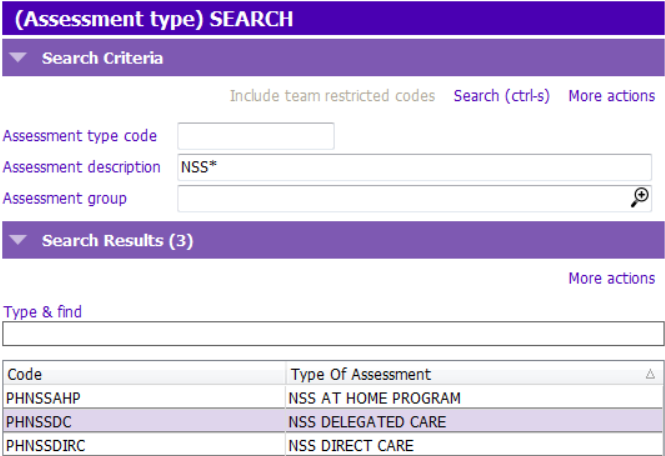
Assessment Description: Select NSS Delegated Care
Details tab
Header Details
Date Started: Enter date
Reason for assess.: Select the type of assessment:
Initial Assessment (displays on report as New Delegation)
Re-Assessment (displays on report as Annual Re-assessment)
Annual Assessment (displays on report as Annual Re-assessment)
Additional Information
Assessment Date: Enter date
Referral Date: Displays the referral date that the assessment is attached to
Name of Parent/Guardian:
Click Add another Parent/Guardian button to add additional parents/guardians. A maximum of 3 parents/guardians can be entered.
If Display Parent/Guardian information on report is left unticked, the Parent/Guardian information will not display on the report printout.
Diagnosis/Nursing Care Needs
Diagnosis Information
Tip: Report displays:
Current diagnoses as a bulleted list. Resolved and No longer valid diagnoses are excluded.
Diagnoses with Primary Diagnosis ticked display in the Primary Diagnosis section with the status in brackets.
Diagnoses with Primary Diagnosis unticked display in the Secondary Diagnosis section with the status in brackets.
Delegation Needs
Reassessment Date: ability to enter the actual date or free text (e.g. in 6 months)
Current Health History
Allergies / Adverse Reactions
Allergies can be entered and updated within the assessment or in the Client Banner.
Paediatric Equipment
Tip: Report displays current equipment items as a bulleted list and how often required (frequency) adjacent to the equipment item (e.g. Walker – Daily).
MedicationsTip: Report displays current medications including the dose, frequency, and route.
System Summary
Systems Summary
Each system section defaults to close. Tick the systems applicable to the delegated care plan to expand and document in the sections. 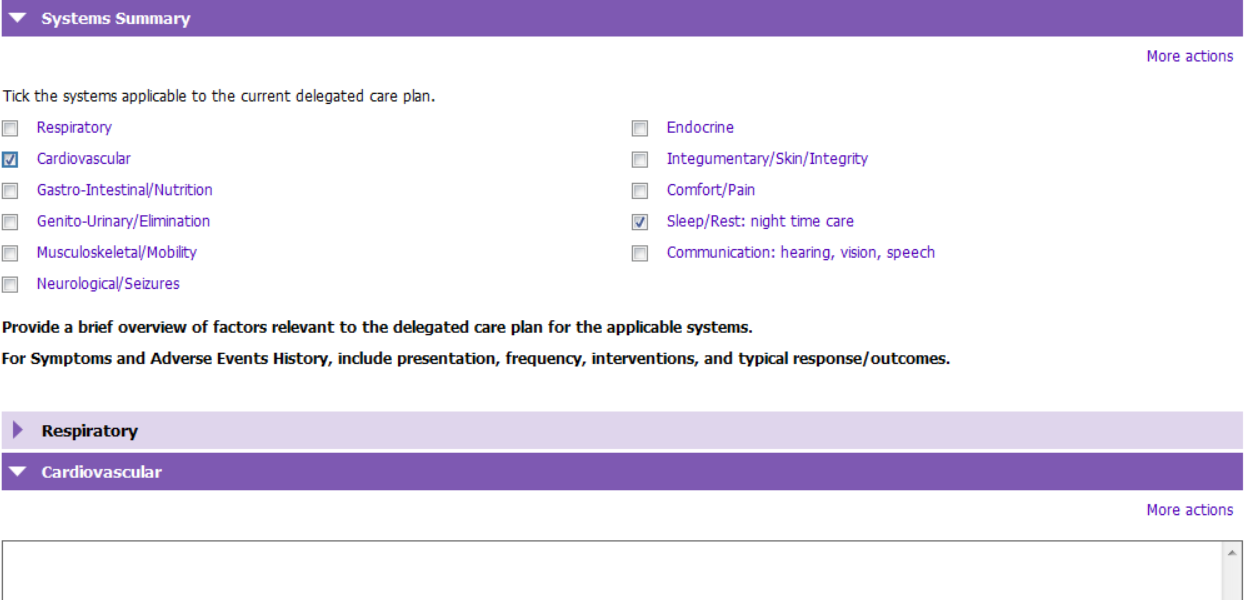
Each system summary section displays a maximum of 10 lines. To enter in full screen mode and to utilize functionality similar to MS Word, right click in the text box and select Full Screen. Tip: Do not enter your username date/time stamp (ctrl-T) as it will display on the report printout.
To deselect a system summary, remove the text from the system section. The system checkbox will become enabled again so that you can deselect the checkbox.
Assessment Completion
Assessed and Ready to Submit: Tick upon completion of the assessment. All of the sections within the assessment will become read-only and the assessment will be end dated.
NSS At Home Program
Assessment Description: Select NSS At Home Program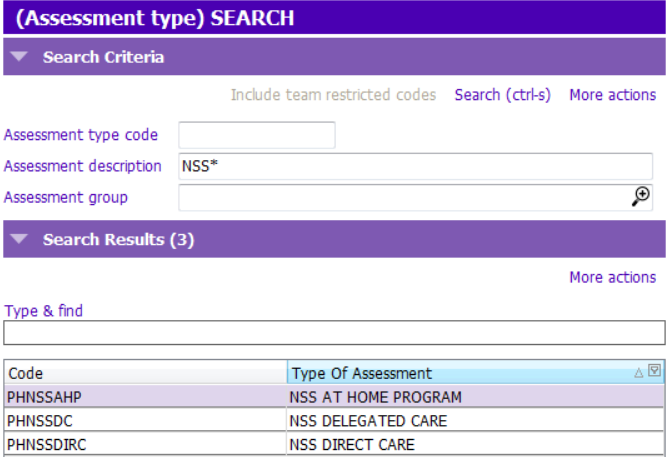
Details tab
Header Details
Date Started: Enter date
Reason for assess.: Select the type of assessment:
Initial Assessment
Re-Assessment
Additional Information
Data will display on the report in the associated sections as selected and entered.
Eating – Mobility tabs
For each skill, tick the type of assistance required (e.g. Independent, Assist, or Dependent) and enter descriptions in the text boxes as required.Tip: Remember to enter Date Assessed at the top of each screen as it displays on the report.
Submit/Outcome tab
Submit/Outcome
Assessed and Ready to Submit to MCFD: Tick upon completion of the assessment. All of the sections within the assessment will become read-only except for Header Details, Outcome of Committee Meeting, and Document Upload.
Outcome of Committee Meeting: Enter the Outcome, For, and Approval Date after the committee meeting.
Document Upload tab
Document Upload
Upon completion of the assessment, entering the outcomes, and uploading any documents related to the assessment, end date the assessment.
1. Navigate to Details tab, Header Details section.
2. Enter the End Date.Tip: End dated assessments display in the count for NSS assessments on the Caseload Report – PRT/NSS V2.
Print Assessment
The assessment can be printed from the first tab of the assessment.
1. Navigate to Form Tools
2. Click Print Form and then Run Report
3. When the report generates,
a. Click the Print icon and add your wet signature OR
b. Add your name, date and e-signature following the steps below:
Navigate to the page where you would like to add your signature
Click Fill & Sign on the right side navigation bar 
To add Name and Date:
1. Click the Ab icon on the top navigation bar.
2. Click in the Name field and type your name.
3. Click in the Date field and type the date.
To add your e-signature:
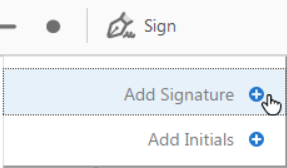
1. Click Sign on the top navigation bar and then click Add Signature
2. Click Draw and use your mouse to draw your signature.
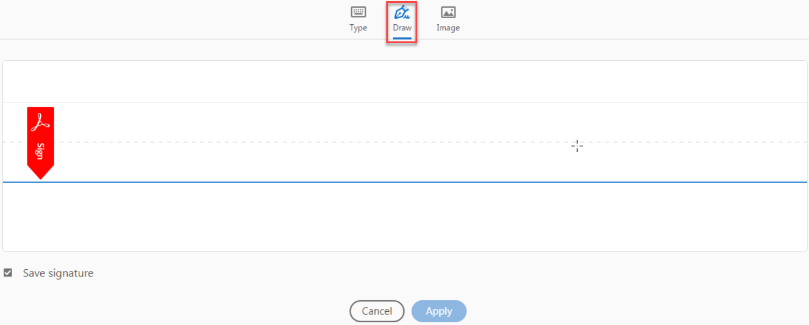
3. Click Apply
4. Drag and drop your signature in the Signature field.

Click the Print icon to print the signed report OR
To email the report, click Save and save the report to your Home Directory (H:) using the following naming convention: date, description, initials (e.g. 2021-01-12_DelCareAsmt_AW).
Paediatric Rehab Assessments
Assessment Description: Select the appropriate assessment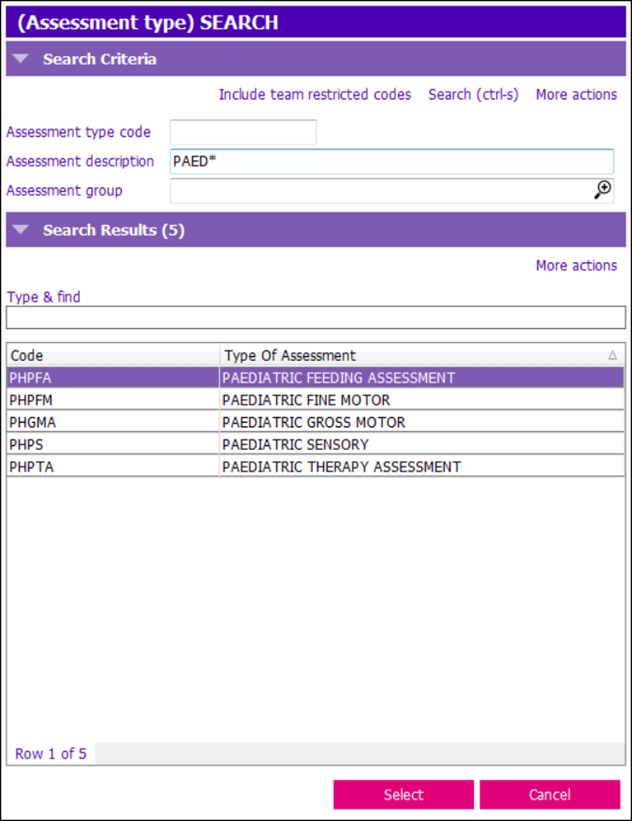
Main tab
Header Details
Date Started: Enter date Reason for assess.: Select one of the following reasons. The report title is based on the reason for assessment.
| OT Initial Assessment | PT Initial Assessment |
| OT Reassessment | PT Reassessment |
| OT Consultation Report | PT Consultation Report |
| OT Discharge Report | PT Discharge Report |
Diagnosis Information
Medications
Paediatric Equipment
Included in the Paediatric Feeding Assessment and the Paediatric Therapy Assessment
Activity & Participation, Body Functions/Environment, and Summary tabsTip: For all the unlimited free text fields, right click in the text box and select Full Screen to enter in full screen mode and to utilize functionality similar to MS Word.
Document Upload tab
Document Upload
Print Assessment
The assessment can be printed from the Main tab of the assessment.
1. Navigate to Form Tools on the Main tab
2. Click Print Form and then Run Report