Training Record – Batch Entry
Add a Task Trained
Modify a Task Trained
Batch End Date Tasks
Print Training Record
Therapists have the ability to enter multiple tasks at a time using Batch Entry or they can add and modify tasks using the Training Record grid.
Training Record – Batch Entry
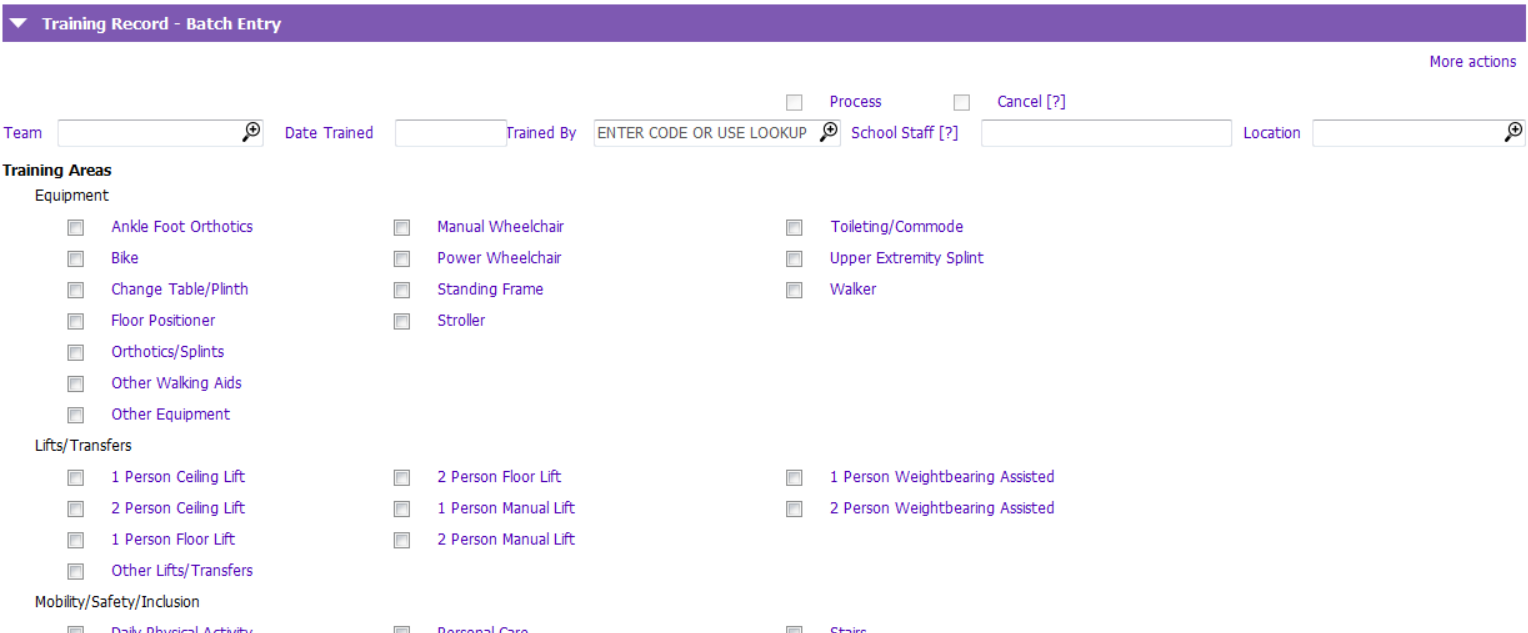
1. Enter the following fields:
 Team: Select Date Trained: Enter the date the school staff member was trained Trained By: Select the therapist who provided the training School Staff: Enter the school staff member’s first name followed by their last name Location: Select After School or School
2. Select the tasks that the School Staff member was trained on
3. Click Process. The selected tasks will move from the Batch Entry section to the Training Record grid.
Training Record grid
All of the tasks trained for the client using Batch Entry or the Training Record grid will display within the grid. The default view displays the client’s current tasks trained. Tip: Click Include historic to view end dated tasks. Click More actions and select Show errors to view tasks entered in error.
Add a Task Trained
1. Click Insert a row.
2. Enter the mandatory fields and a comment if required.
Team: Defaults if the logged in user belongs to one team Date Trained: Date the school staff member was trained Trained By: Defaults to the logged in user’s name School Staff: Enter the school staff member’s first name followed by their last name Location: Defaults to School. Select After School or School.
Modify a Task Trained

1. Highlight the task to modify
2. Click Modify row
3. Edit the fields as required
To end date a task, enter End Date To mark a task as entered in error, tick Entered in Error
Batch End Date Tasks
Therapists have the ability to end date multiple tasks at a time using the Batch End Date Tasks button in the Training Record grid.
1. Click Batch end date tasks
2. Tick the tasks to end date. Click Select.

Print Training Record
Therapists have the ability to print the training record by tasks trained or by school staff.
1. Click Print by tasks trained or Print by school staff
2. Enter the following parameters:
PARIS ID: Defaults to current client Status: Select Only current or Include historic Tasks Trained as of: Enter date. Report will include tasks trained up to and including the entered date. Tasks: Select All tasks or just one task Trained By: Use the drop to select All or use the lookup to select one therapist Location: Select After School or School
3. Click Run Report