Add Client to Waitlist
Waitlist Entry Details Tab
View Clients in the Waitlist
Assign when the Client is added to a Group
From the Referral application
From the Waitlist application
Remove Client from Waitlist
Client Added to Waitlist in Error
Waitlist for groups is being used by teams where clients sometimes need to wait to join a group – such as a group in MH-ART STUDIO – Beginner Drawing.
To W/L a client for groups, you must have the following:
- Be a member of a Team that uses Waitlist for Groups
- Use the right Referral Type (Group Referral)
- Use the right Referral Reason (Waitlist-Groups)
! IMPORTANT:
- Create one waitlist-groups referral for multiple groups waitlisting
- Date Active on W/L determine W/L ranking
- Confirm with your team workflow on how to allocate a waitlist-groups referral
Add Client to Waitlist
1. Log a Referral
a. Type = GROUP REFERRAL
b. Reason =WAITLIST-GROUPS
2. Allocate as per team workflow
3. Click View Waitlist details. The Waitlist entries will display.
4. Click Insert a row. The Matching group Waitlist for of your team will display
5. Select a Group waitlist and complete the waitlist entry details tab
6. Click 
7. Click 
Waitlist Entry Details Tab
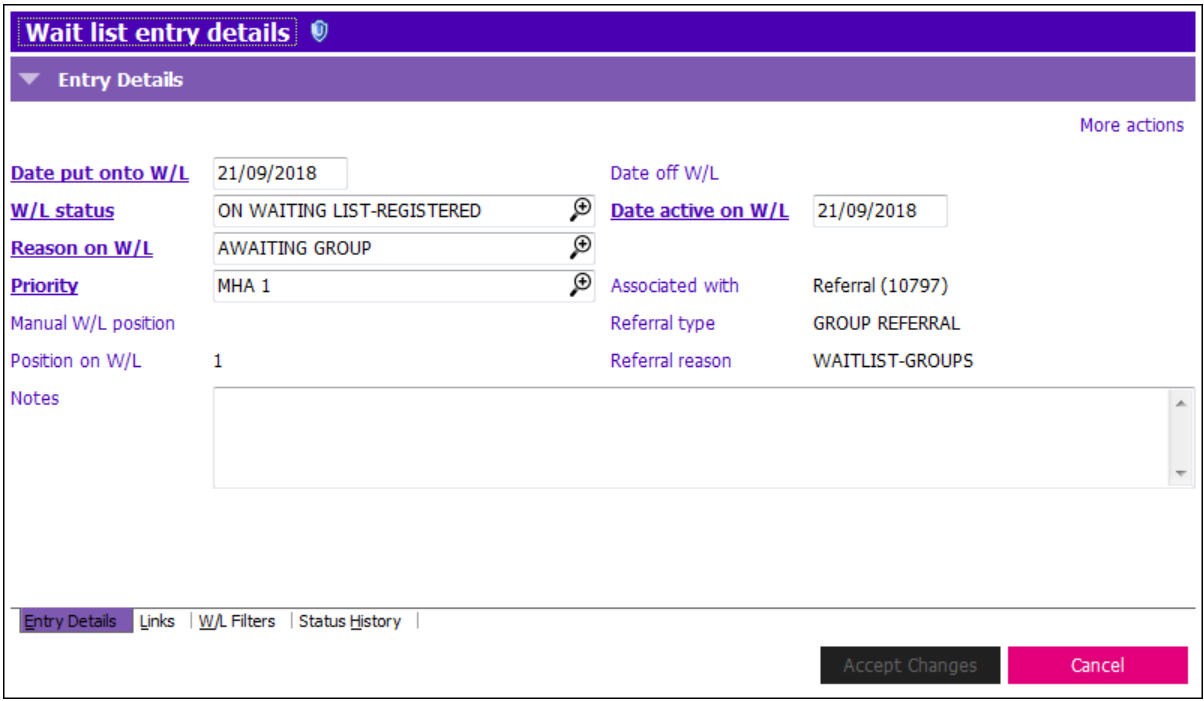
- Date Put Onto W/L: Date the client was eligible for W/L
- W/L Status: Select ‘ON WAITING LIST – REGISTERED’ unless otherwise stated in your program guidelines
- Reason on W/L: AWAITING GROUP
- Priority: Check your guidelines for priority definitions
- Position on W/L: This is auto-calculated based on Priority + Date active on W/L
- Date Active on W/L: Generally the same as the Date put onto W/L
- Notes: Indicate relevant information about the client’s needs/requests. Entries will be included in the reports
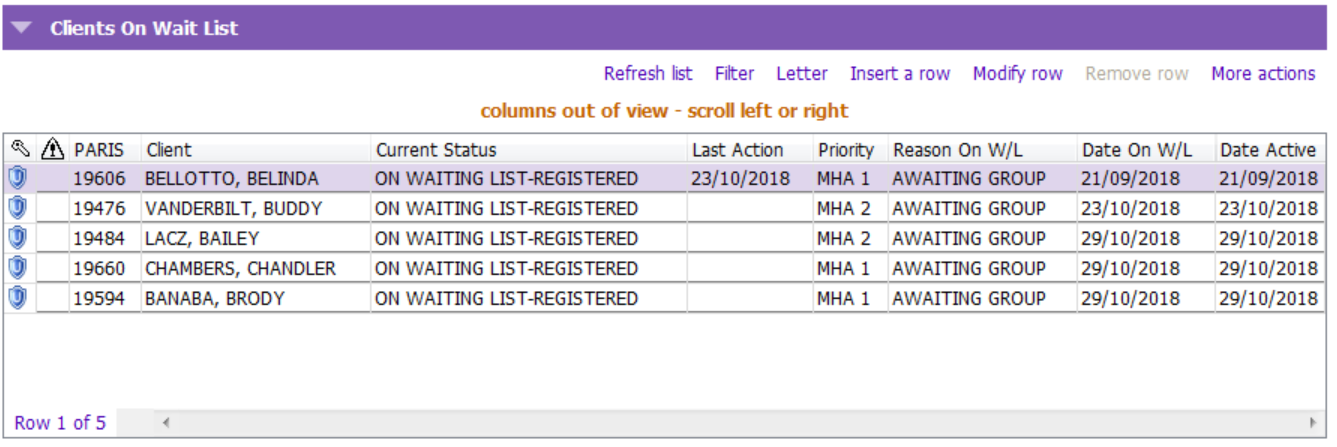
View Clients in the Waitlist
1. From the home screen, navigate to and click on the Waitlists application.
2. Click on the Waitlist icon.
3. The Waitlist search criteria defaults to “My teams only”. Click  or update filter view as necessary. Saving search criteria will keep this form from displaying.

4. Click to select the appropriate waitlist on the left side of the screen.
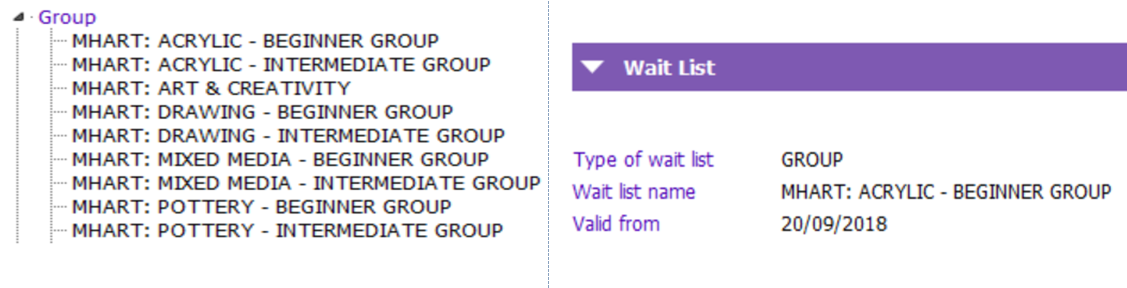
5. Click on the name of the client to make them active.
Assign when the Client is added to a Group
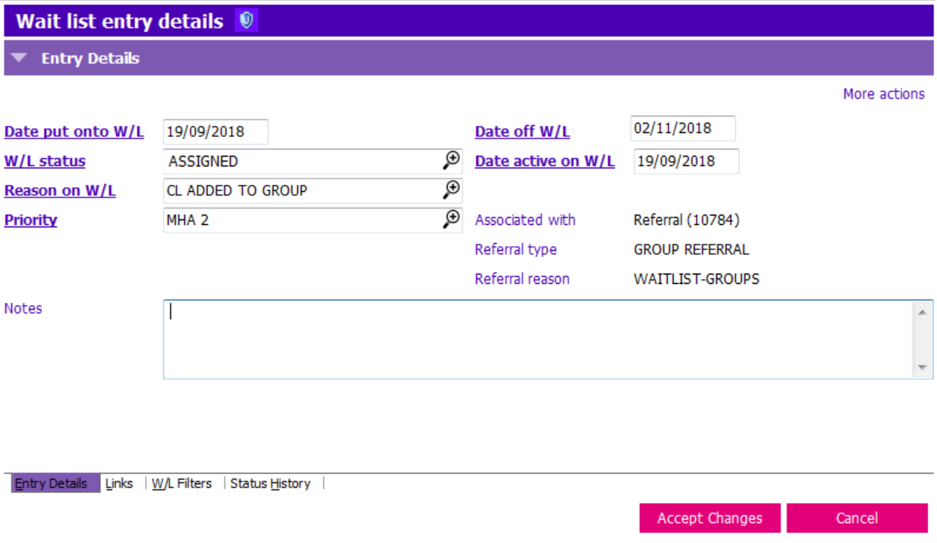
Once a client is added to group, we need to remove them from the waitlist.
From the Referral application
1. Click on the Waitlist- Groups Referral
2. Click View Waitlist details. The groups waiting list the client is waitlisted will display.
3. Choose the group the client is added to
4. Click Modify row and update the following:
a. W/L Status: “ASSIGNED”
b. Reason on W/L: “CL ADDED TO GROUP”
c. Date off W/L: Enter the date client was added to the group
5. Click 
6. Click . The Client is now off the W/L 
From the Waitlist application
1. Click on the Waitlist Application
2. Click on the group waitlist the client is on
3. Click on the client’s name in the Clients on Waitlist grid
4. Click Modify row and update the following:
- W/L Status: “ASSIGNED”
- Reason on W/L: “CL ADDED TO GROUP”
- Date off W/L: Enter the date client was added to the group
5. Click 
6. Click  . The Client is now off the W/L
Remove Client from Waitlist
See the Waitlist Troubleshooting Tips article for more information.
Client Added to Waitlist in Error
See the Waitlist Troubleshooting Tips article for more information.