Waitlisted client needs to be removed from waitlist for chosen facility
Client offered a bed however client no longer wants this bed placement
Client offered a bed but date of offer is incorrect
Logged wrong Referral Type and cannot add to a waitlist
Waitlisted client needs to be removed from waitlist for chosen facility
Q: How to remove a client off of waitlist before a bed has been offered.
A:
REMOVED should only be used when the client did NOT receive service or when the client did NOT join a group. For Waitlist-Service and Provider Offer, if the client was suspended, you must first end date the suspension before removing from waitlist.
1. Click on Wait List Application
2. Select the appropriate waitlist
3. Click on the client’s name in the Clients on Wait List grid
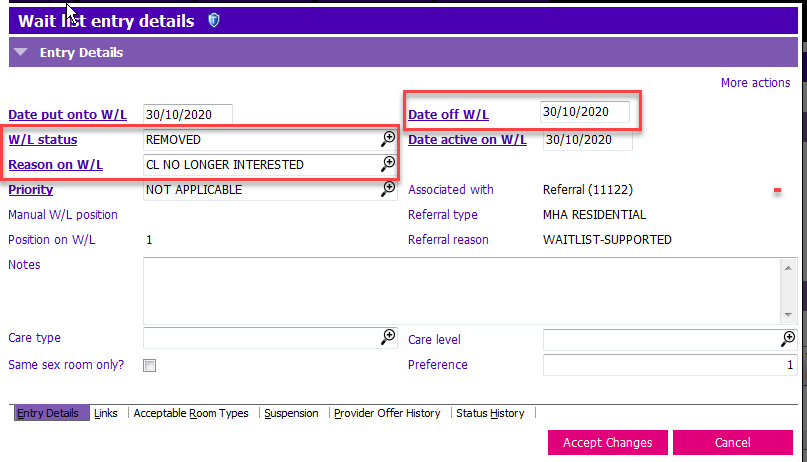
4. Click Modify row and update the following fields in the Wait list entry details window:
- W/L Status: Select REMOVED from the picklist
- Reason on W/L: Select appropriate reason for removal (example: CL PERSONAL REASONS)
- Date Off W/L: Field is now mandatory, enter appropriate date
5. 
Client has been removed from waitlist - update your casenotes to this change and proceed to discharge the client or place on a different waitlist.
Client offered a bed however client no longer wants this bed placement
Q: You have provided and recorded an offer to the client for a bed they are waitlisted for. The client has changed their mind and does not want to take this bed offer. How do you remove this offer in PARIS?
A: Once you have recorded the client's offer response as accepted but the client changes their mind, you cannot make any changes to that client's offer status. You must follow Action steps outlined below.
ACTION:
1. Print the Client Offer History report
2. Mark the offer that’s in error
3. Have your manager sign the report
4. Scan the report and email: IMITS PC & Community <IMITSPCCommunity@vch.ca>
5. PARIS will remove the offer
Client offered a bed but date of offer is incorrect
Q: You have offered a bed via provider offer but the offer date is incorrect. How can you fix it?
A: Once you have offered a bed and started the process in PARIS Provider Offer, you cannot make any changes. Follow the Action steps below instead.
ACTION:
1. Print the Client Offer History report
2. Mark the offer that’s in error
3. Have your manager sign the report
4. Scan the report and email: IMITS PC & Community <IMITSPCCommunity@vch.ca>
5. PARIS will remove the offer
Logged wrong Referral Type and cannot add to a waitlist
A: Once a referral is created, the referral type is locked. You can no longer add a client to any waitlist from the referral application. Mark the referral as entered in Error and log a new referral using the correct referral type.
Client Added to Waitlist in Error
1. Click on Wait List Application
2. Select the appropriate waitlist
3. Click on the client’s name in the Clients on Wait List grid who was added to the Waitlist erroneously
4. Click Modify row and update the following fields:
- W/L Status: REMOVED (Code: REMOVED)
- Reason on W/L: ENTERED IN ERROR (Code: EIE)
- Date Off W/L: Field is now mandatory, enter today’s date
- Notes: Make a note that the client was added to this waitlist erroneously
5. Press Enter to accept window