Link a Casenote to the Clinical Care Plan
Unlink a Casenote to the Clinical Care Plan
Link a Casenote to the Clinical Care Plan
1. Create a casenote by clicking the  button in the casenote toolbar.
2. Fill out the casenote as per your programs guidelines. See Create a new Casenote.
3. Scroll to the Clinical Care Plan Link section.
4. Click the  button. The Link to goal(s) window appears showing the Needs and Goals entered by your team.
5. Select Need & Goal you wish to link to the casenote and click Select.
6. The linked Need & Goals then display in the Clinical Care Plan Link section in the format: [Need] Goals.
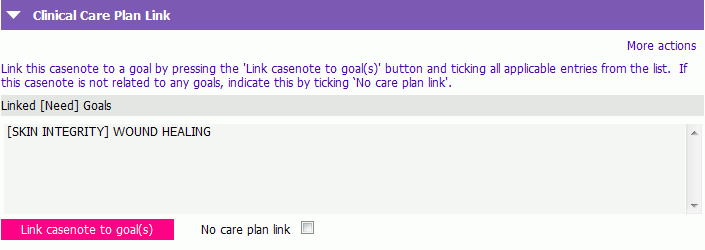
7. Save the casenote.
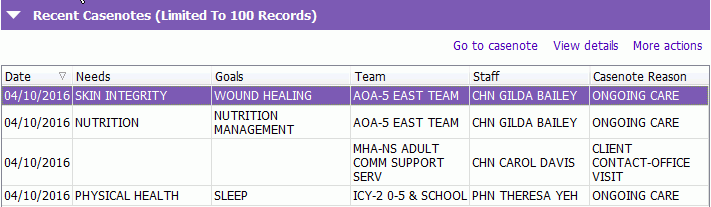
8. When you navigate back to the Clinical Care Plan, the casenote you just created appears in the Recent Casenotes section at the top of the grid.
Unlink a Casenote to the Clinical Care Plan
1. Open the casenote that needs to be corrected.
2. Click the button.
3. De-select any of the incorrect links and click Select.
4. The linked Need & Goals then display in the Clinical Care Plan Link section in the format: [Need] Goals.
5. Save the casenote.