When a screening tool is marked as Final or Discontinued Administratively, the form is now locked and it does not allow editing. When the screening tool needs to be unlocked (e.g., completed prematurely, error correction), the Unlock Form button will be used to re-open the screening form. The button is available to Team Leads, PH Clinic Systems Educators and Paris Support. Contact Team Lead, PH Clinical Systems Educator or Paris Support if you have a screening form that needs to be unlocked.
The following steps will be performed by Team Leads, PH Clinical Systems Educators or Paris Support.
1. Highlight the row with FINAL or DISCONTINUED ADMINISTRATIVELY status in the Nursing Priority Screening (July 11th, 2022 And Onwards) section. 
2. Click on More actions. Choose the Unlock Form option from the list. The Confirm message will appear. 

3. Click Yes. The Reason message will appear. Write a brief reason that is less than 50 characters. Here are a few examples of the reason:
a. Form completed in error
b. Form unlocked to allow error correction
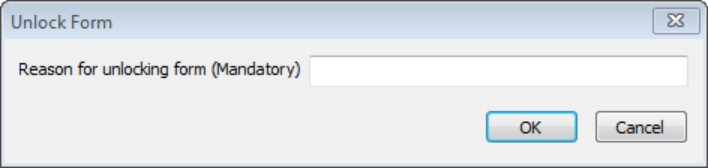
4. Click OK. The system will auto save the entry. The screening row will now have the status of DRAFT CURRENT. The form can be edited by clicking on Continue

The previous version will be seen in the Version History And Error Correction section the status will be UNLOCK FINAL or Discontinued Administratively