Legend Details
View Menu Actions
Appointment Booking Legend

 |
  |
 |
|


Legend Details
| # | Title | Description |
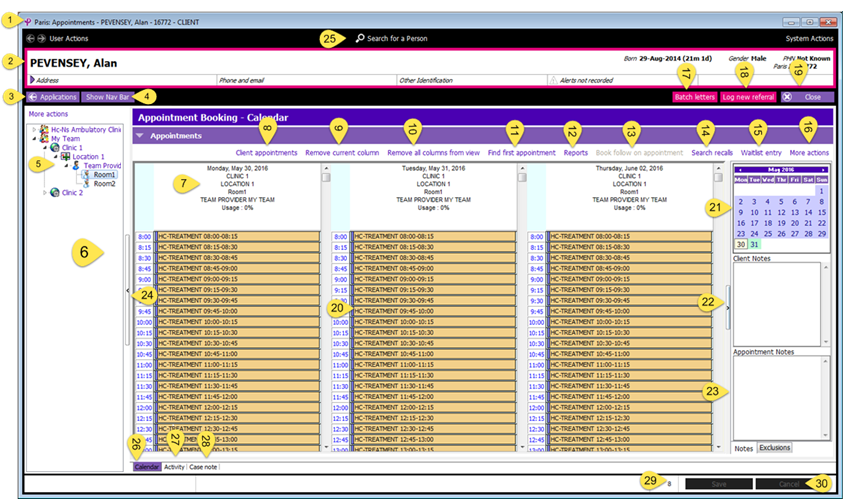
| 1 | Browser Information Bar | Display of current application and active client |
| 2 | Client Banner | Displays Demographic information about the client |
| 3 | Back to Applications | Use to go back to the Applications Page |
| 4 | Show/Hide Nav Bar | Show or hide the Navigation (Nav) Bar |
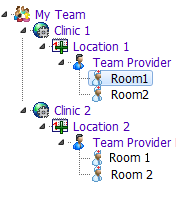
| 5 | Team Tree | Navigate through available Teams and Rooms |
| 6 | Actions Pane | Displays the Available Teams and corresponding Rooms |
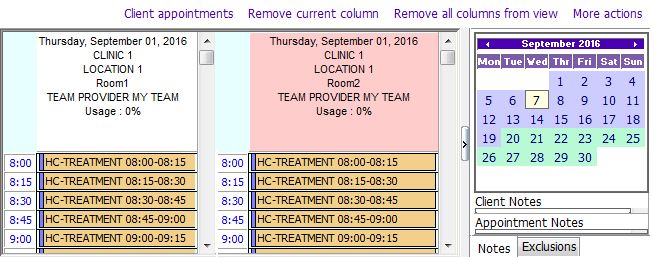
| 7 | Room Details | Displays Date, Name of Room, Location, Owner (usually a team) |
| 8 | Client Appointments | Shows all appointments for the Active Client (e.g. Alan Pevensey) |
| 9 | Remove a column | Closes the current column from your schedule view |
| 10 | Remove all columns | Closes all columns from your schedule view |
| 11 | Find first appointment | Find the next available time slot |
| 12 | Reports | Quick link to Run Reports |
| 13 | Book follow on appointment | Book another appointment direct from a cancellation |
| 14 | Search Recalls | |
| 15 | Waitlist Entry | |
| 16 | More Actions | Find the list of all tasks found in the Application Tool bar |
| 17 | Batch Letters | Access to Letter Templates |
| 18 | Log New Referral | To create a new referral for a client who does not have an appropriate referral open. |
| 19 | Close | Close current Form (Appt Booking Window) |
| 20 | Appointment Slot | Time slot available for Client Appointment |
| 21 | Clinic Calendar | Shows clinic Days available (green ) and past (purple) for active room |
| 22 | Client Notes | Notes applicable to client and stays with file |
| 23 | Appointment Notes | Notes applicable to current appointment session |
| 24 | Collapsible bar | Expand and Collapse to utilize real estate |
| 25 | Search for a Person | Start a new Search for a person |
| 26 | Calendar Tab | |
| 27 | Activity Tab | |
| 28 | Casenotes Tab | Create casenote for currently attended appointment |
| 29 | Inbox notifications | |
| 30 | Cancel |
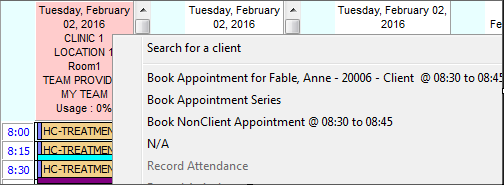
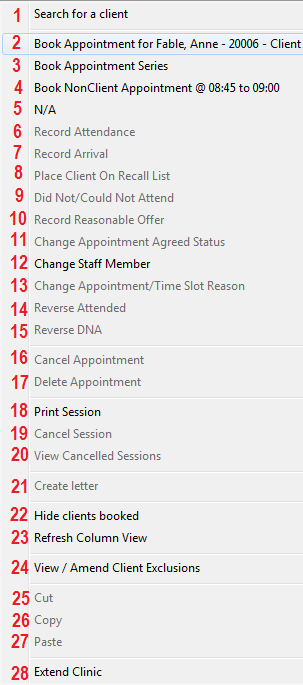
Right clicking on a time slot will bring up a menu where you can perform a number of different actions.
View Menu Actions
 |
|
The appointment time-slots are colour coded to identify different statuses. To view what the colours mean click on More Actions in the top right hand corner of the screen above the calendar and select Legend. The below legend will appear:
Appointment Booking Legend
