Open Appointment Book (May be done by PA or Clinician)
Display only Specific Clinic Days (May be done by PA or Clinician)
Confirm Clinic hours
Extend Clinic times (Caution - Cannot be undone!)
Confirm Column Staff Name (Site Specific Workflow)
Open Appointment Book (May be done by PA or Clinician)
1. Navigate to the Appointment Booking application. NOTE: If you do not have a schedule loaded or have never opened a schedule, you must conduct a search first. (If you have your schedule open already, skip this step)
2. Click the Search For Session button. The Session search window will appear:
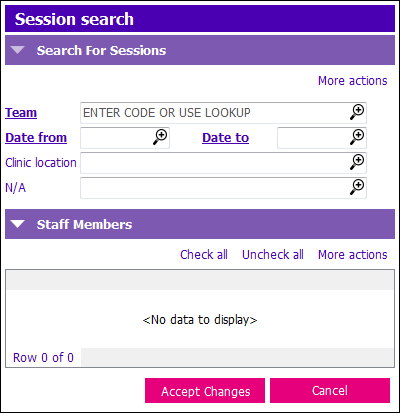
3. To Search for a session, enter the following fields:
- Team: Select the appropriate team. For example: HC-NS Ambulatory Clinic
- Date from and Date to: Enter the date range you wish to search for
- Clinic location: Enter the name of the clinic you wish to search for
4. Click Accept changes to search.
5. Click Remove all columns from view.
Display only Specific Clinic Days (May be done by PA or Clinician)
1. You can add or remove columns to see specific clinic days by highlighting a column and clicking Remove current column OR:
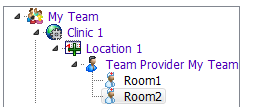
- From within the Options Tree, first select the relevant Team/Clinic/Location/Provider/Room:
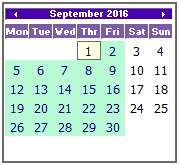
- Double click the date you wish to display from the little calendar on the right:
2. Repeat from Options Tree for additional day/location/room etc.
Confirm Clinic hours
1. Ensure template clinic hours match actual clinic hours
2. Scroll within the column to earliest time available to line up times
3. Check start times and finish times of both columns match. IF NOT:
Extend Clinic times (Caution - Cannot be undone!)
1. Click the time slot that needs to be extended (before or after).
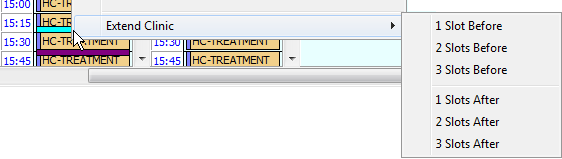
2. Right click to select extend clinic.
3. Based on time required, select number of slots needed:
Confirm Column Staff Name (Site Specific Workflow)
1. Confirm staff member name assigned represents clinic nurse for the day: (Caution – Not advised if you expect nurses to be sharing a clinic) (Caution – Casenotes entered via Appt Booking will default to assigned nurse, unless manually changed).
2. Column header will have Team Provider name as a default.
3. If different, select column header to change and right click, select Change Staff Member: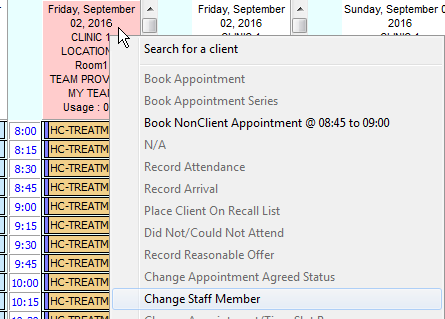
4. The Staff in charge window will appear:
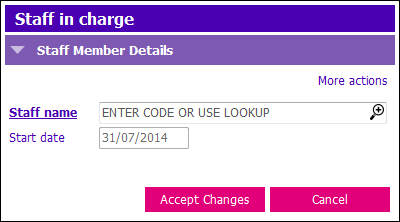
- Staff name: Select staff member from pick list.
5. Click Accept Changes.