Record Client Did Not Attend (No show)
Recording Client Arrival may be done by a PA or Clinician.
1. With the Appointment Booking scheduling open, find the client on the schedule that you would like to mark as Arrived. NOTE: If you do not have a schedule loaded or have never opened a schedule, you must conduct a search first: (If you have your schedule open already Continue to Step 7).
2. Click the Search For Session and the session search window will appear.
3. Verify the Team Field.
4. Enter the earliest date of the range that you wish to view.
5. Enter the last date of the date range you wish to view.
6. Click Search.
7. Single left click on the client name on the schedule to make the client active, then right click on client’s name and select ‘Record Arrival’:
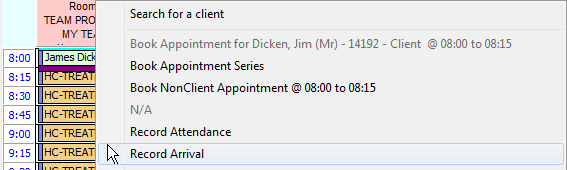
8. The Arrival window appears with the Arrival time defaulted in to the current time. Click Accept changes.
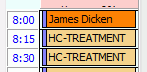
9. Appointment is now in a different colour to indicate the client has 'arrived':
Record Client Did Not Attend (No show)
1. Find the client on the schedule that you would like to mark as Did Not Attend:
2. Single left click on the client name on the schedule to make the client active.
3. Right click on client’s name and select ‘Did Not/Could Not Attend’.
4. Reason: No Show (Code = NS).
5. Accept Changes.