When you first log into PARIS you'll be taken to the Home page. The Home page has a number of different parts.
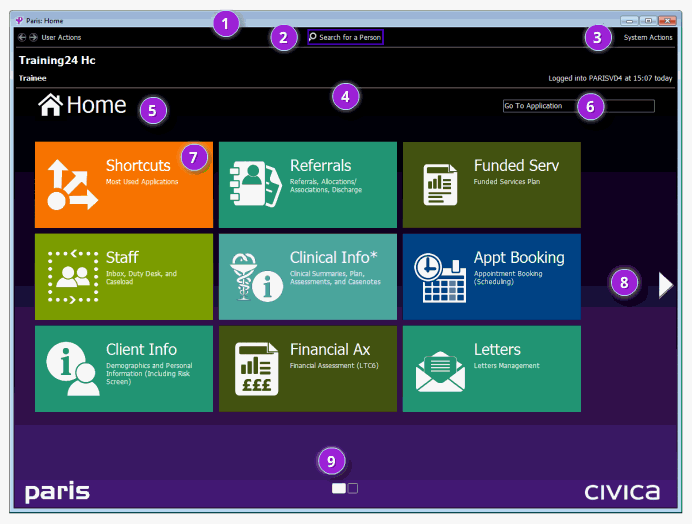
| 1 | PARIS window title bar | The title bar indicates which screen you are viewing in the top left corner. When a client’s record is open, you see the application as well as the client’s name and PARIS ID as shown in the example above. |
| 2 | Search for Person | Opens Person Search. This function is available on every PARIS screen. You can search for a client, whether or not you have a client open. |
| 3 | System Actions Menu | Provides a means to perform actions such as Closing the clients record and logging off of PARIS. |
| 4 | Information Bar |
Shows who is logged in and what their role is on the left. On the right you can see which version of PARIS you are logged into and what time you logged in.
|
| 5 | Home icon | Indicates you are on the Home screen. |
| 6 | Go To Application | Application Search. Start to type the name of the application you wish to go to. |
| 7 | Shortcuts Home Tile | One of many Home Tiles that contains frequently used applications. |
| 8 | Next Page Arrow | Takes you to another page of applications. When there is not enough room on the Home Page applications are available on additional pages. |
| 9 | Page Indicator | In this example, it indicates you are on the first of two pages. |
