The Re-direct messages button allows user to have Inbox messages go to another member on their team.
1. In the Inbox application, click Re-direct messages, and the Redirection details window appears:

2. Click Insert a row and the Redirection Details- entry window appears:
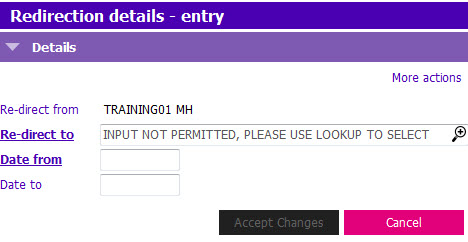
3. Update the following fields:
- Re-direct from: The entering clinician’s name will auto-populate in the ‘Re-direct From’ Row
- Redirect to: Click the
 or press F4 to launch the picklist and select another member of your team you want to receive your Inbox messages while you are away
 - Date From: Enter appropriate date you want him/her to receive your Inbox messages from
- Date To: Enter end date you want him/her to receive your Inbox messages until if known
NOTE: The Date From and Date To can be set for any time frame. So, if you want to set it up well ahead of time, you can. If you set the ‘Date To’ to the day before your return, you don’t have to make any changes; messages will automatically stop being redirected.
4. Click Accept Changes.