Copy an Assessment
Copy Assessment: Current Client Same Team
Copy Assessment: Current Client Different Team
Column or Section Complete and Make Read Only
Some Assessments are repeated:
- When a client returns for service
- On a regular basis as a standard of care
- To reapply a tool or scored Assessment e.g.: a mini-mental or AIMS
You can do this by:
- Copying the Assessment by clicking the
 button
 -
Creating a New Assessment by using the
 button, OR
 - Inserting another row for scored or Assessment tool (if applicable).
Copy an Assessment
You can Copy an Assessment to someone on your own team or you can copy an assessment to someone on a different team. The Assessment you wish to copy can be open or closed.
Copy Assessment: Current Client Same Team
1. In the Assessments options tree, click on the Assessment you want to copy
2. Click the  button in the Assessments toolbar. The Copy profile criteria window will appear
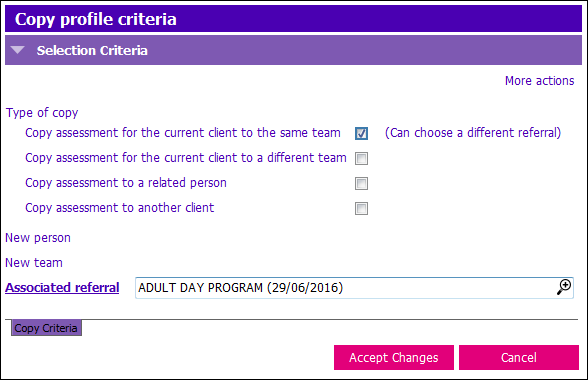
3. Tick the 'Copy assessment for the current client to the same team' tick box
- Associated referral: Select the appropriate referral associated to copied assessment
4. Click Accept Changes. Confirm message window will appear
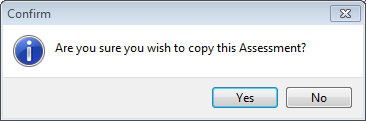
5. Click Yes to the confirm message
- The copy process may take a few moments
6. Assessment copy displays in the Options Tree at left. Enter the following fields in the newly copied assessment:
- Date started: Enter the appropriate date. PARIS date format: DD/MM/YYYY
- Carried out by: Enter the appropriate provider name. This should be the name of the provider that assessed the client.
7. Press F12 to Save
- Go through each Tab and review the copied Assessment, make changes as necessary
- Some Assessments have a "Page Completed" tick box at the end of each page. You may have to untick the box in order to make changes!
Save after each page!
Once the Assessment changes are completed, Save and end date the Assessment as per your clinical guidelines.
Copy Assessment: Current Client Different Team
You can copy Assessments to the same client but for a different Team.
Example: The client was seen by a different team but has moved to your catchment area and you’re required to do the same Assessment Type. Most of the values still apply.
1. In the Assessments options tree, click on the Assessment you want to copy
2. Click the  button in the Assessments toolbar. Copy profile criteria window will appear
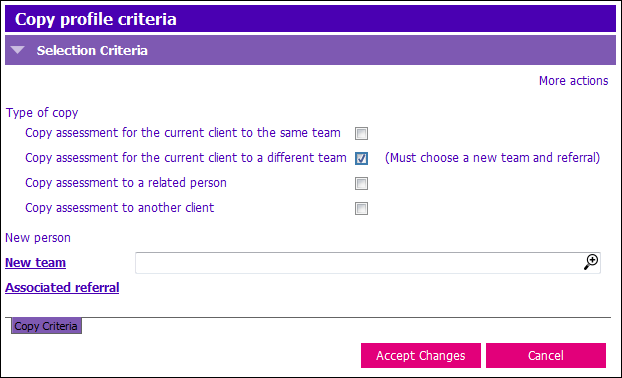
3. Tick the 'Copy assessment for the current client to a different team' tick box
- New team: Select the Team you wish to copy the assessment to
-
Associated referral: Select the appropriate referral associated to copied assessment
- NOTE: The team you are copying the assessment to must have an open referral.
4. Click Accept Changes. Confirm message window will appear
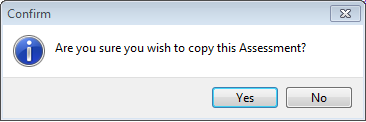
5. Click Yes to the confirm message
- The copy process may take a few moments
6. Copied Assessments display in the Options Tree under the Team you copied the Assessment to. Enter the following fields in the newly copied assessment:
- Date started: Enter the appropriate date. PARIS date format: DD/MM/YYYY
- Carried out by: Enter the appropriate provider name. This should be the name of the provider that assessed the client.
7. Press F12 to Save
Column or Section Complete and Make Read Only
Section Complete tick box, in most Assessments, makes that section Read Only. You can’t make any changes to that section!
Make Read Only tick box: will make that section READ ONLY. You won’t be able to edit the section after clicking Make Read Only.