Create a Service Priority Score
This section is to be used only by MHSU teams/programs who have been directed to include Service Priority Scoring for their clients. This grid supports identifying clients who are at the highest priority for service due to staff shortages or staff redeployments.
Note: This process is completed while a clinician is completing their Casenote. For information on how to complete a MHSU progress note see Create a Progress Note.
Create a Service Priority Score
1. To create a new Client Service Priority Score entry, scroll within the MHSU casenote to locate MHSU Client Service Priority Score Grid.
2. Click  for your first entry.
3. Today’s date, your name, team and the 6 week renewal date will automatically populate the entry screen.
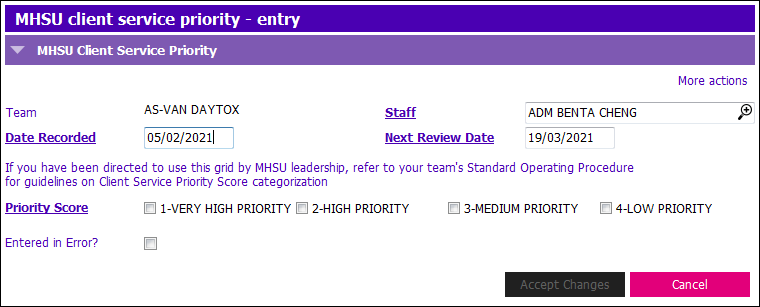
4. For Priority Score definitions please refer to the Regional MHSU SOP.
The date of your casenote should be the same as the date you enter the Client Service Priority Score.
If you are making a late entry for the client, back date the date in  , and then click or tab into the
  to update the date to 6 weeks.
5. When you are satisfied, click the  button.
6. You will now see your entry appear in the Client Service Priority grid. Only the most recent Priority Score will appear in the grid. However, a record of all previous entries can be viewed by clicking  . (Disclaimer: only scores for a 1 year range will be visible; a report to pull all client historic scores is available)
7. The Next Review date will auto populate for 6 week intervals. See below for definitions of Review Flag’s viewable in the grid.

8. Proceed with the rest of your Casenote documentation and be sure to note if the score has changed or has not changed within your content.
9. Click  (F12) when complete.
10. At next client care or collateral received, Clinician reviews grid score seen in Casenotes. If the score has not changed and review date is not due – leave score as seen. If Priority Score has changed before review date a clinician will ‘insert a row’ to capture then new Priority Score. Please refer to Regional Client Service Priority Standard Operating Procedure for details of clinical practice.
Enter in Error
This function will be used to record if the Priority Score is in error.
1. Click to highlight the row you want to Modify. Click  .
.
2. The entry screen opens. Place a tick mark in the Entered In Error tick box. 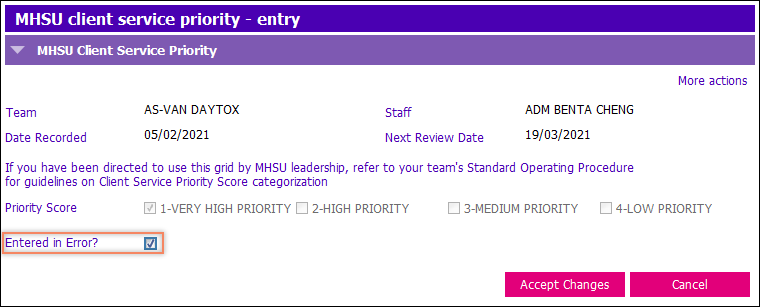
3. Click (F12) when complete.
4. Clickto record the new score.
Copy Row
This function will be used if the review date is due and the score has not changed for the client.
1. Click to highlight the row you want to Copy. Click  .
.
2. The entry screen will auto populate with today’s date, staff name, team, and will update next review date (6 week review interval). The Staff name, Date Recorded, and Next Review Date are editable.
3. Once you are satisfied, click the button.
4. Click (F12).