Enter Consenter Information
Record a Consent / Dissent / Deferral
Add an Antigen to Immunization Consent Status

Informed consent is an essential pre-condition to providing immunization. It is the professional and legal responsibility of the provider to obtain informed consent prior to immunization.
The Informed Consent Entry application is used to document informed consent, dissent and deferral.

The Consenter Information determines the type of Informed Consent received.
Enter Consenter Information
NOTE: The Consenter Information must be filled out before you can add an antigen.

1. To enter Consenter Information, enter the following fields:
- Self Consent: Check when consent given by self (either adult or mature minor)
- School Consent: Check only when documenting dissent/deferral for school aged client from a paper consent, or from a school campaign. When the box is checked, Relationship becomes mandatory
- Obtained From: Enter name of parent or guardian who provided consent for children (outside of school campaigns). When entered, Relationship becomes mandatory
- Relationship: Select from pick list of consenter relationship
 Record a Consent / Dissent / Deferral
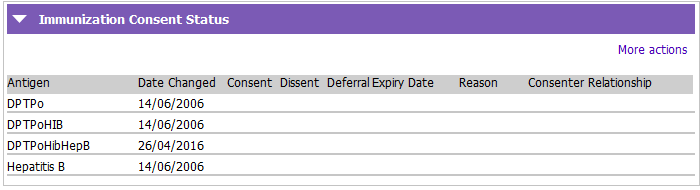
1. Click on the appropriate antigen in the Consent / Dissent / Deferral column.
2. Expiry Date box will appear.
3. Expiry Date will default as seen below, but can be changed. Then click OK.
| Age Group | Default |
| Children Under 4y School Age (> 4y, =<19y) Adult (>= 20y) All Ages |
Date of child's 4th birthday June 30th of next school year (2 Junes) 2 years from the date the consent is entered Consent expiry date for flu vaccine defaults to April 30th, the end of the flu season |
For Dissent / Deferral:
- A window titled "Immunization Dissent / Deferral Reason lookup" appears
- Select the appropriate reason, then click Select
4. A tick box ( ) will appear under the Consent / Dissent / Deferral column and information entered in previous steps will appear in their respective columns
Information will be green if consented, red if dissented, pink if deferred

NOTE: If an antigen grouping contains multiple antigens, a checkmark ( ) and duplicate information will appear for the applicable antigens in that grouping.

NOTE: If you click either or  all the information contained in the row(s) will disappear.
5. To enter a comment regarding the dissent or deferral, go to Immunization Alerts, after completing Informed Consent documentation
6. Modify alert row, add a note, then click Accept Changes and F12 to Save.

Add an Antigen to Immunization Consent Status
1. To add an antigen, Click on the magnifying glass beside the Antigen field and the (Goal) SEARCH window appears:
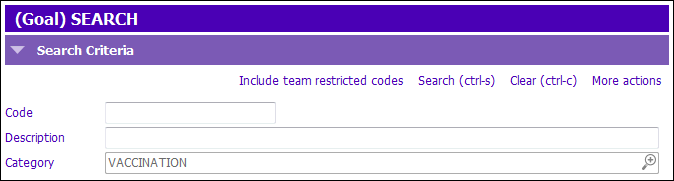
2. Select the appropriate antigen, then click Select.
3. Tick the Add to Antigen list checkbox to add the antigen to the Immunization Consent Status grid.
4. Go to the Immunization Consent Status section to record Informed Consent. See Record a Consent/Dissent/Deferral.
NOTE: You must fill out the Consentor Information prior to adding the antigen.