

The Imms Client Profile application displays the details regarding all immunizations, planned and given, including Immunization Alerts, Suspensions, Contraindications, and Schedules. You can view but cannot update or enter information in the Imms Client Profile.
Imms Client Profile is used primarily to view planned immunizations for clients under and including the age of 20 years
- If you do not have access to the Immunization Application click on Clinical Summary
- Client Profile displays Immunization Alerts entered from the Immunization Alerts Application
- You can’t update, add or modify Immunization Alerts from Client Profile
- If a note was added to an Immunization Alert, the note displays as a second row underneath the alert

This section displays the immunization schedule templates that the client is assigned to

This section displays Immunization Alerts if any have been recorded against the client

This section displays all planned immunizations that client is planned for
- Planned Immunisations (Planned View) is the default view in the Planned Immunizations grid
- Dose numbers are not displayed in this view
- Dose numbers can only be seen in a Component View
- Antigen Group View grid displays:
- Antigen: Single antigens or “operational groups” such as MMR
- Age Due: Calculated date based on BCCDC schedule/rules, child’s DOB and applied template; displays age, in years and months, when the antigen is due
- Min Date: Calculated date based on BCCDC schedule/rules, client DOB, minimum age, minimum interval between doses & immunization history. Min Date is earliest safe date the client can receive antigen
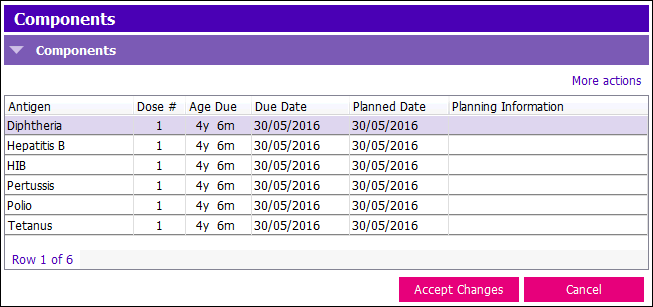
- Double clicking on a row launches the Component View window. All antigens, dose number and any Planning Information displays in the Component view.
- Clicking the Toggle view button will display all scheduled antigens in their component view
There are 3 views within this section:
Planned Immunizations buttons enable you to navigate to the different views:
- Show extended view: Displays the same view as current screen, but in a larger format
- Toggle view: Displays single antigen view of history with dose numbers
- Scheduled: Displays antigens that are scheduled as well as antigens that are disallowed
The Process planned button forces a re-plan of the client's immunizations

This section displays the immunization histories that have been given. We cannot add, modify or remove information from this view
- Antigens will display in:
- Green text for VALID
- Red text for INVALID
- Antigens are VALID if they have met all scheduling rules
- Antigens are INVALID when they have broken the LIVE virus rules or minimum age requirement
- Double click any of the grid entries to view the components
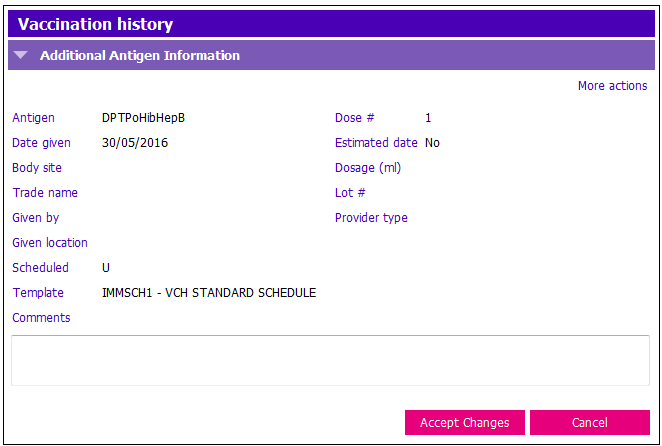
1. Show Additional Information: Opens the Vaccination history window (shown below) and displays details about a single row in the history grid:
2. Show Extended View: Displays history in a larger format
3. Toggle View: Displays single antigen view of history with dose numbers
4. Validate History: Validates history
NOTE: Double clicking on a row launches a Component View window. If the row contains an operational group, each individual antigen displays in the Component View window
- Antigens displayed in Green text are VALID doses
- Antigens displayed in Red text are INVALID doses

Current immunization consent status
- Information in this section is updated from Informed Consent Entry Application
- You cannot enter or modify consent from Imms Client Profile
- You can print consents by clicking the [Print Consent Letter button] in the Imms Client Profile toolbar
Consent Status buttons:
1. Show extended consent view: Displays the same information as seen in the grid but in a larger format.
2. Toggle historic view: Displays changes made to consents
Text Colours in Consent grid- Row displays in:
- Green text means Consent has been obtained
- Red text means dissent
- Purple text means there is consent on one or more but not all antigens in an operational group
- Black text means implied consent

This section displays information about antigens that have been suspended from Immunization profile due to specific Alerts.
This section is for information only. If you want to see the Suspensions, please go to the Immunization Alerts Application

This section displays a read-only view of any current contraindications. If you want to see a contraindication go to the Immunization Alerts Application

This section displays campaign information the client is currently on:
- Campaign Date
- Team
- Schedule/Campaign: Campaign ID and name of campaign
- Once the campaign's been run the row is automatically removed

Audit Header displays Date/Time Changed, User Who Made Change, User Team and Reason For Change that audited the antigen history
- If there’s more than one entry in Audit Header grid click on each row to see altered antigen histories.

- All recorded antigens display in Audit History grid.
- Antigens that have been modified or altered display in purple text in the Audit History grid.
- Antigens that have been deleted display in Red text
- Antigens that have not been altered display in black text