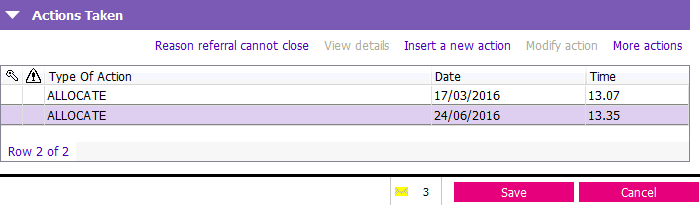
There are times when the Perform Allocation button is NOT active. You can use the Actions Taken grid at the bottom of the referral form. The Perform Allocation button is not active when the referral status changes to Allocated.
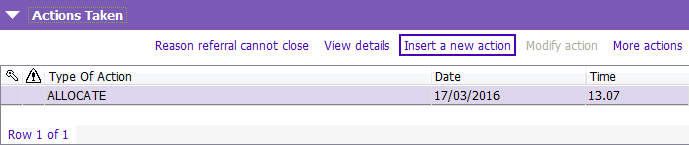
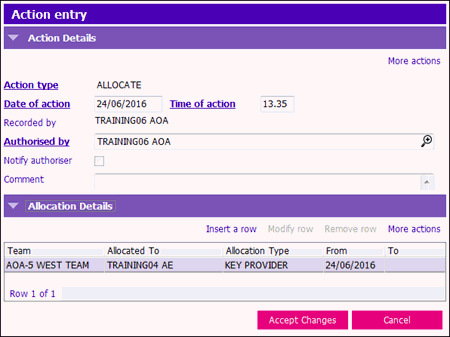
1. Scroll to the bottom of the Referral form to the Actions Taken section and click Insert a new action.
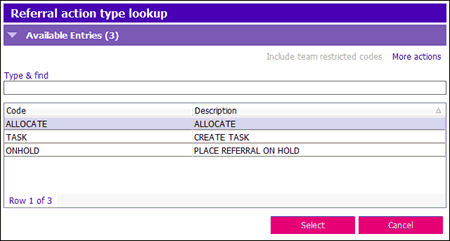
The Referral action type lookup window appears.
2. Select Allocate from the Referral action type lookup.
3. Click Insert a row in Allocation Details.
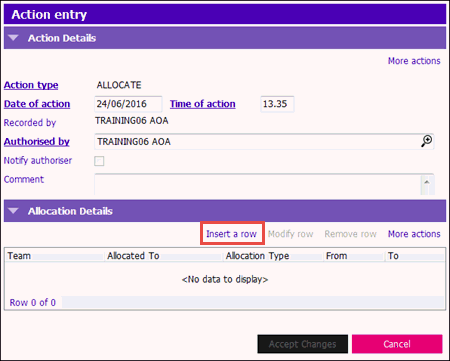
The Allocate detail window appears
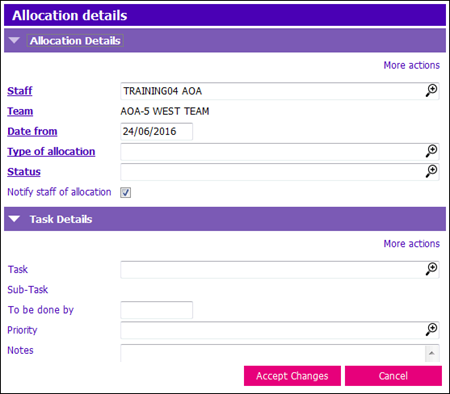
4. Enter the Staff person.
- If allocating to SELF, enter your user name and press tab.
- To allocate another user, press F4 and select the appropriate staff member or click the magnify lookup icon.
5. Enter the Date from by pressing Ctrl + T or using the correct date formate (dd/mm/yyyy).
6. Enter the Type of Allocation by:
- Typing the first letter of type of allocation and then double-click on the predictive text list item.
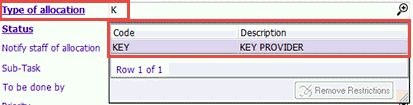
- Typing the Code for the Type of Allocation and then press tab. In this example the code is Key.
Note: Follow your team standards when choosing the Type of Allocation.
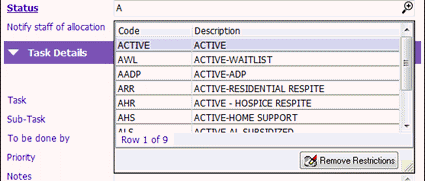
7. Enter the Status by typing the first letter of Status and then double-click on the predictive text list.
8. Click Accept Changes to save the Allocation Details window.
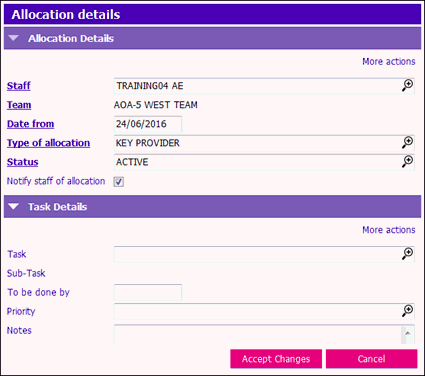
9. Click Accept Changes to save the Action Entry window.
10. Save the Referral form.