From the Perform allocation button in the Referral toolbar
From the Actions Taken section
1. Select a referral from the Current Referrals grid.
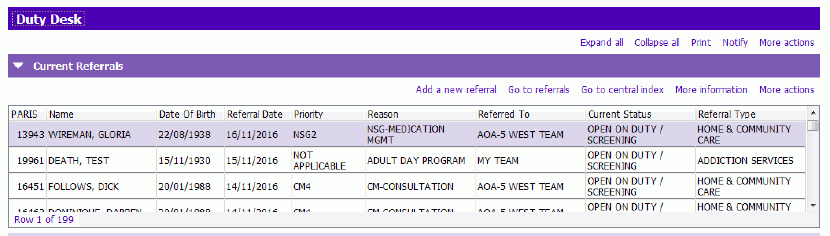 2. Double-click on the row or click Go to Referrals. Duty Desk takes you directly to the open Referral.
3. You can then allocate from there using either the  button in the Referral toolbar or the Actions Taken grid.
From the Perform allocation button in the Referral toolbar
1. Complete the Type of Allocation and Status fields as per your Team workflow or guidelines.
NOTE: When using the Perform Allocation button, PARIS will assume that the logged in user is the one being Allocated. If this is not the case, select the correct staff person from the list
2. Press enter twice then press F12 to Save
From the Actions Taken section
1. Scroll to the bottom of the screen and expand the Actions Taken section and click Insert a new action
2. The Referral action type lookup window appears. Select Allocate from picklist
3. Click Insert a row in Allocation Details, the Allocate staff window appears
4. Staff: If allocating to SELF, enter your user name. To allocate another user, press F4 and select the appropriate staff member
5. Complete the Type of Allocation and Status fields as per your Team workflow or guidelines. Press Enter
- If there are more staff to Allocate to, repeat the last 2 steps
6. Click Accept Changes and F12 to Save
After allocating the referral, it will not longer be listed in Duty Desk unless the default settings for Duty Desk have been changed.