Allocate Multiple Staff from Caseload Tab
Allocate Multiple Staff from Referral
Allocation Details Window
1. Go to the Team Caseload application.
2. Select the Team List tab.
3. Expand your team in the Options tree by clicking  .
.
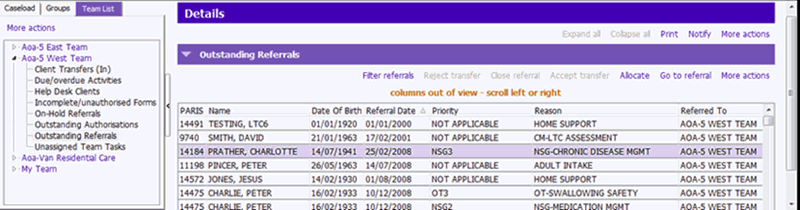
4. Select Outstanding Referrals.
5. Select the referral you want to allocate.
Note: To help locate the referral, see tips to Filter the Referrals and Sort and Filter a grid.
6. Allocate using one of the following methods:
- Right-click on the appropriate client in the grid, click Allocate to
 and a list of all Staff on the Team appears. Select appropriate Staff person.
 - Click
 on the Outstanding Referrals toolbar.
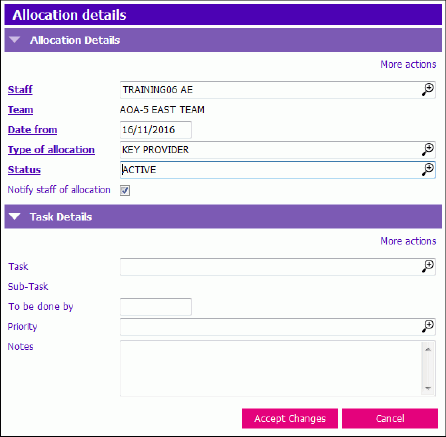
7. Complete the Allocation details form.
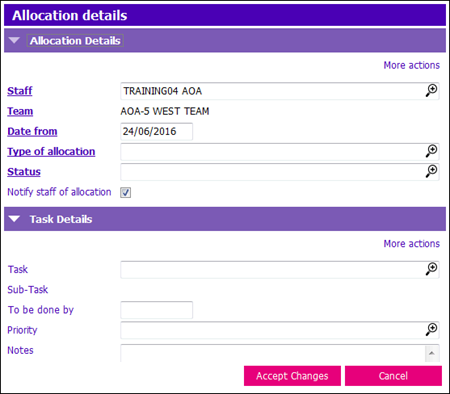
a) Enter the Staff person. This will be complete if you used the Allocate to option.
- If allocating to SELF, enter your user name and press tab.
- To allocate another user, press F4 and select the appropriate staff member or click the magnify lookup icon.
b) Enter the Date from by pressing Ctrl + T or using the correct date format (dd/mm/yyyy).
c) Enter the Type of Allocation by:
- Type the first letter of type of allocation and then double-click on the predictive text list.

- Type the Code for the Type of Allocation and then press tab key on your keyboard. In this example the Code is Key.
Note: Follow your team standards when choosing the Type of Allocation.
d) Enter the Status by typing the first letter of Status and then double-click on the predictive text list.
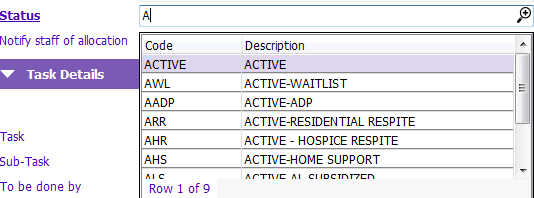
If you do not wish the staff person to receive a Notification in their Inbox advising them that they have been allocated to the client, untick the Notify staff of allocation box.
e) Click Accept Changes to save the Allocation Details window.
Once a staff person has been allocated, the referral will disappear from the Team List of Outstanding Referrals.
Allocation Details Window
When using the Allocate toolbar button the Allocation details window opens. Fill in the following fields:
- Staff: Press F4 to search for the appropriate team member
- Team: Defaults to your Team
- Date from: Defaults to today's date
- Type of allocation: Press F4 to select the appropriate allocation type
- Status: Press F4 to select the appropriate allocation status
- Notify staff of allocation: Tick box defaults to ticked and sends the allocated member an inbox message to notify the allocation
- Authorised by: Defaults to your name
Allocate Multiple Staff from Caseload Tab
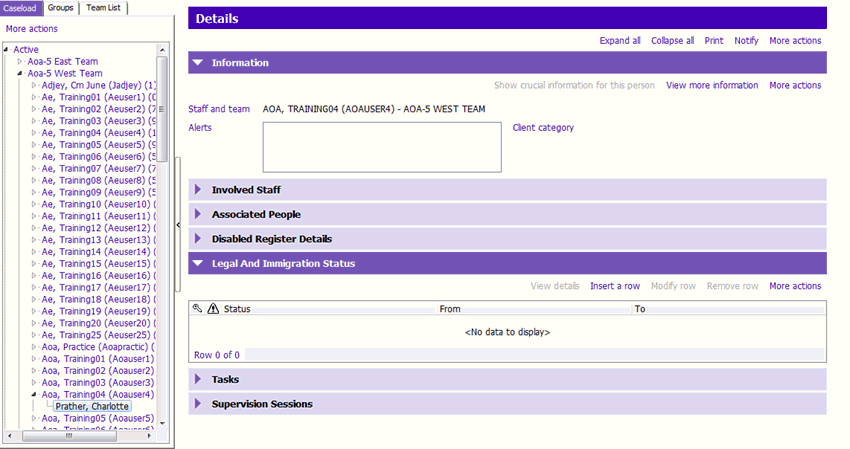
Once the first person has been allocate the client's referral will be on the allocated staff person's caseload. You can view the referrals by going to the Caseload tab in Team Caseload.
Expand the team and staff member to view the referral.
Allocate Multiple Staff from Referral
1. Select the referral on the Team List tab.
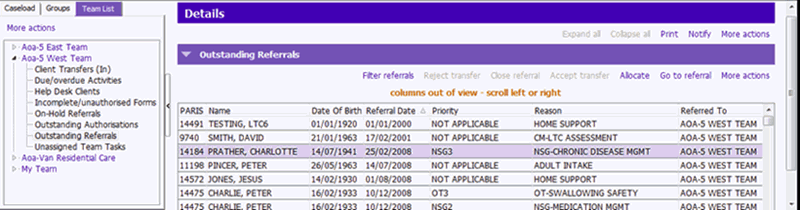
2. Click the button.