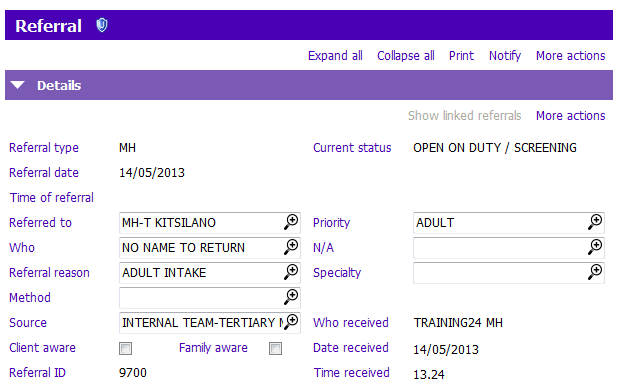
Referral Toolbar Button Functions
Expand the Options Tree
Referral Form Sections
Parts of a Referral
Referral Toolbar Button Functions









 |
1 Log New Referral: Click to create a new Referral |
 |
2 Copy Referral: Click to copy an existing Referral form. |
 |
3 Link Referrals: Is not being used at this time |
 |
4 Produce Letter: Produces letter template available from Referral |
 |
5 Case Note: Create a Referral Casenote |
 |
6 Perform Allocation: Allocate the first person to the referral. The button can not be used to allocate additional staff to the referral. |
 |
7 Refer On: is not being used at this time |
 |
8 View Waitlist Details: used to add a client to a WL |
 |
9 Group Facilities: Used to create client groups ('Old' Groups) |
 |
10 Go to Central Index: Takes you to client's Central Index |
 |
11 Reports: Displays the list of reports shown in Reports and Labels |
 |
12 More Actions: Provides menu to other actions that do not fit on the screen. |
Expand the Options Tree
To expand all levels in the options tree:
1. Click More actions above the Options Tree
2. Select Expand all levels in the drop-down
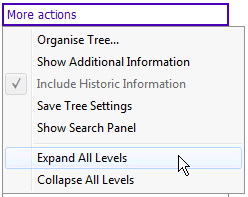
To expand individual levels in the options tree:
1. The Referrals Options Tree is defaulted collapsed.
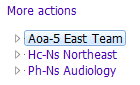
2. Click the  beside the Team to expand and view the referral reasons made by the given Team
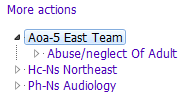
3. Click the  beside the referral reason you wish to view. The dates when the referral was created will appear
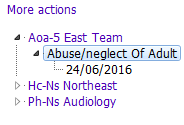
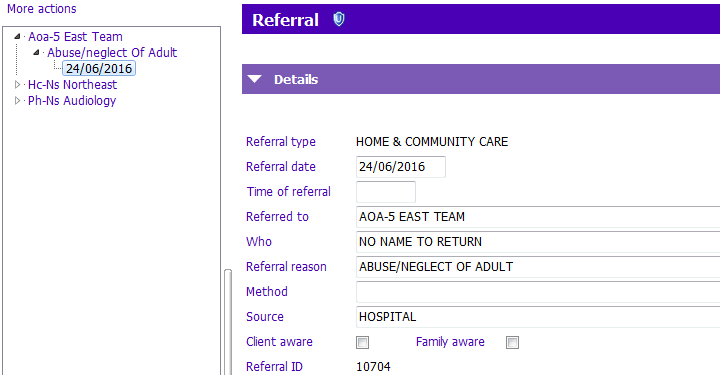
4. Click the date of the referral you wish to view. The referral will appear on the right
Referral Form Sections
Referral forms have a number of different sections.
- Sections can be collapsed by clicking the Collapse
 arrow.
 - If a form section is collapsed, the title will be a lighter purple. Click the Expand
 arrow to expand the section.
Parts of a Referral
Referral forms PARIS can contain:
- Grids: If a section has a grid format, the section Header will contain buttons similar to these:=

- Click Insert a row to add information and Modify row to change grid information
- Click the View details to view information in a grid row
- Check boxes: Also called Tick boxes. Point and click on a check box to enter a check mark into the check box or press the spacebar if the focus is on the box
- Drop-down lists
- Narrative free text fields: Click inside the field and type. Text fields will have a maximum number of characters.
- Radio buttons: Click the mouse on radio buttons to enter a response