Enter a Medication
Modify a Medication


Use Medication Profile to view the current list of medications


- To see end dated medications, check the box beside Display End Dated Medications? and save. List displays below grid Medications - With History
- To see the history of all changes made to medication(s), check the box beside Display Order History? & save. List displays below grid Medication Order History. Entries are reverse chronological (most recent first)

Enter a Medication
1. In the Medications - Current section, click on Insert a row. The Medications - current - entry window appears:
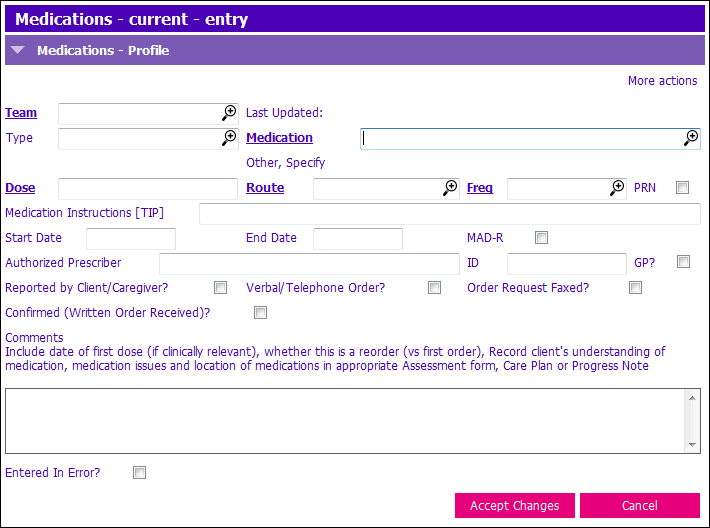
2. Enter the following fields:
- Team: Click on the
 to activate the picklist and select your team
 - Medication: Click on the
 to activate the picklist and select the appropriate medication
 - Dose: Enter the appropriate dose
- Route: Click on the
 to activate the picklist and select the appropriate route of administration
 - Freq: Click on the
 to activate the picklist and select the appropriate frequency
 - Medication Instructions: Enter instructions here
NOTE: Instructions should be specific to the Medication (e.g., take with food); information related med management should be in the Care Plan - PRN or MAD-R: Click tick box if the medication is PRN or being administered/dispensed (MAD-R)
NOTE: If you administer the medications to the client, it's important to tick the MAD-R tickbox - GP?: Click tick box if prescriber is GP/NP; it will autopopulate from the Central Index. Otherwise, type in prescriber’s name.
3. Press Accept Changes and F12 to Save
NOTE: Comments section does not pull into grid or reports
NOTE: To enter several medications, go to the Medication Batch Entry application.
Modify a Medication
1. Select the medication you wish to modify in the Medications - Current grid
2. Click on Modify row. The Medications - current - entry window will appear
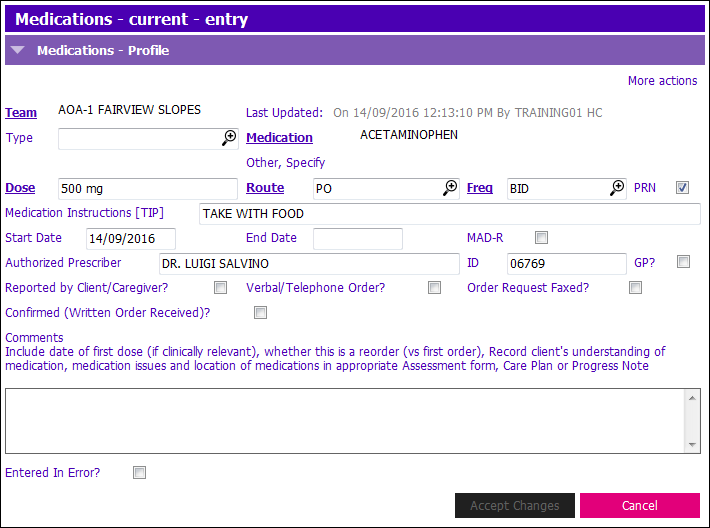
- All fields can be modified (everything but the medication name)
- Instructions should be specific to the medication (eg., take with food); information related to med management should be in the Care Plan
- Click the tick box if the med is PRN or being administered/dispensed (MAD-R)
- Click the tick box if prescriber is GP/NP; it will auto-populate from the Central Index. Otherwise, type in prescriber's name
- PARIS automatically keeps a history of your changes
NOTE: Comments section does not pull into grid or reports

If Display Order History? is ticked off in the Medications - View section, this section will show the history of all changes made to medications.
