

The Groups application was created in 2012 and is commonly referred to as "New Groups". The Groups application is used for group set up and charting, and is available on the Home screen. (Old Groups functionality is embedded within Referral).
- Group functionality allows you to manage Group clients
- Group members can be added and removed as needed
- You can record Group attendance and create Group casenotes
- Guidelines tell you when and what information should go into your Group Casenotes

Create New Group
Ensure all group members are registered in PARIS
Making a list of the PARIS IDs for your group members will facilitate speed of setup when creating a new Group in PARIS
Ensure you have an active client open
1. Click on the Group Setup Application.
2. Click the NEW GROUP tick box.
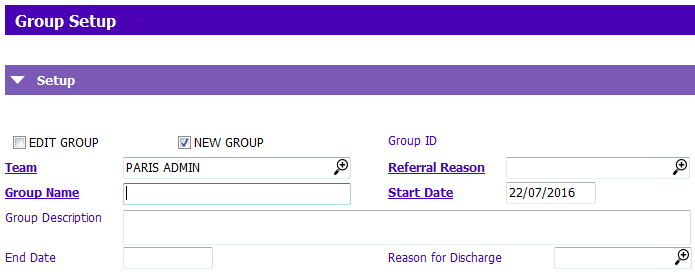
3. Upon ticking 'NEW GROUP' the following fields become mandatory:
- Team: Enter the team this group belongs to (you must belong to the team you are creating a group for
- Group Name: Type the name of the group (eg. ‘Site’ ‘Group Name’ ‘Start date’ = “CPS Coffee Club June 2012”)
- Referral Reason: Select an appropriate ‘Referral Reason’ for this group.
- NOTE: All group referral reasons begin with 'GRP'
- Group Description: You may also add additional information if required
4. For MRR purposes, click tick box if the group uses a CBT model.
TIP: Client is currently enrolled in formal Cognitive Behavioural Therapy (CBT) provided by a qualified professional according to and guided by the CBT framework.)
5. In the Members grid, click Insert a row, the Members - entry window appears:
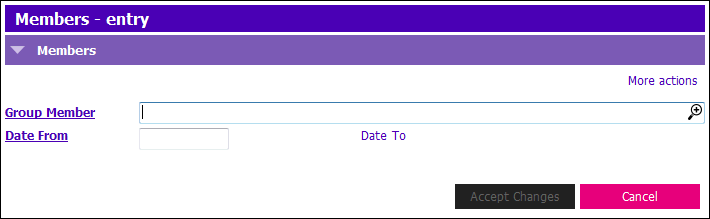
6. Add a Group member:
- Group Member: Type in the PARIS ID of the client you wish to add to the group OR if the PARIS ID is unknown, click the
 to open the person search window and search for the client using the PARIS Search Procedure (Repeat this step to add all group members)
7. In the Facilitators grid, click Insert a row and click the magnifying glass to bring up staff members list. Use Type & Find to find the staff member who will facilitate the group. (Repeat this step as required).
Paris will allow you to add a facilitator, who is not a member of the team. To chart on the group the staff member must first be added to the team.
8. Press F12 to Save.