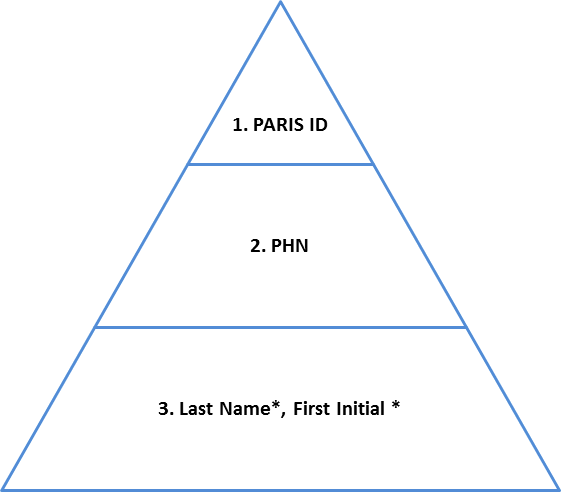
Search Pyramid
Search to See if a Client Has Been Registered
Step 1: PARIS ID Search: If PARIS ID is known
Step 2 : PHN Search: If PARIS ID not known, but PHN is known
Step 3: Last Name* & First Initial of First Name*: PARIS ID and PHN unknown
Step 4: If client is NOT found, Add new person
Related Links
These steps have been designed to prevent you from creating a duplicate client and fragmenting the record.
- It’s best to search from the Central Index application
- Avoid using Person Search from the Referral application unless you are certain the client already exists in PARIS and you know you need to create a referral
- Always exhaust all three search methods prior to creating a new person.
Search Pyramid
|
SPECIFIC
BROAD |
 |

If your client has not been found, click  Add new person button button or (Ctrl – N) to register the client.
Search to See if a Client Has Been Registered
Complete ALL search steps until you either find the client or have exhausted all search steps! See Interpreting Search Results for more information.
1. Click on the Central Index application. NOTE: The Person Search should be conducted from the Central Index application to allow for Break Glass to activate if needed.
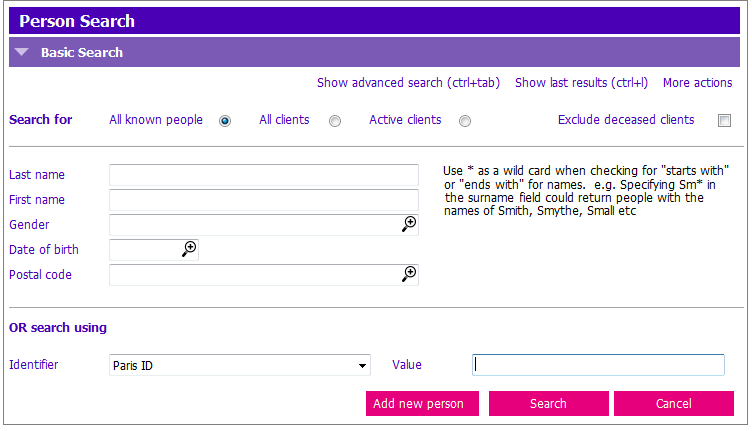
2. OR If you have a client's record open you can click on the  button at the top of the screen. The Person Search window will appear:
Step 1: PARIS ID Search: If PARIS ID is known
1. Enter the following fields:
- Identifier: The Identifier field is defaulted to 'Paris ID'
- Value: Type the PARIS ID into the field
2. Click Search or press Ctrl + S on the keyboard. If client was not found check the numbers entered and retype numbers as necessary.
3. Verify from the search results that you have located the correct client. Many clients have records in both FHA and VCH PARIS, the PARIS ID’s will not be the same
4. Select the person from the search results if found and click Select. If client was not found, click Clear (ctrl+d), and go to the next search step.
Step 2 : PHN Search: If PARIS ID not known, but PHN is known
1. Enter the following fields:
- Identifier: Click the
 in the identifier field and select Phn from the drop down.
 - Value: Enter PHN number into the Value field and
2. Click Search or press Ctrl + S.
3. Press Enter if client is found. Note: You may get a message. If client was not found, click Clear (ctrl+d) and go to the next search step
IMPORTANT: Many clients do not have a PHN entered on their record in PARIS. Do not assume that the client is not in PARIS if the PHN search does not produce any results.
Step 3: Last Name* & First Initial of First Name*: PARIS ID and PHN unknown
1. Enter the following fields:
- Last Name: Enter clients surname into the last name field followed by an asterisk (*).
- e.g. client's last name is Clark, enter Clark* this would then also give you Clarke, Clarkson etc.
- First name: Enter first initial of client’s first name into the first name field followed by an asterisk (*).
- e.g. clients first name is Mary, enter: M*
2. Click Search or press Ctrl + S.
3. Select the correct person from the search pane if found.
- Note: Additional information can be provided to narrow down search results, such as Birthdate or Postal Code
Step 4: If client is NOT found, Add new person
1. Click
2. Follow instructions for Registering a New Person.
Related Links
Register New Client
Referrals, Log a Referral
Person Search Window Navigation
Restricted Caseload