Clinician Tips
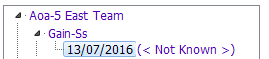
1. In the Assessments application, click on the  next to your Team to view already logged Assessments.
2. Click the date underneath of the name of the Assessment you want to print.
3. Go to Copies To Be Sent To section in the Details tab found at the bottom of the Assessment and click Insert a row.

The Copies to be sent to: - entry window will appear:
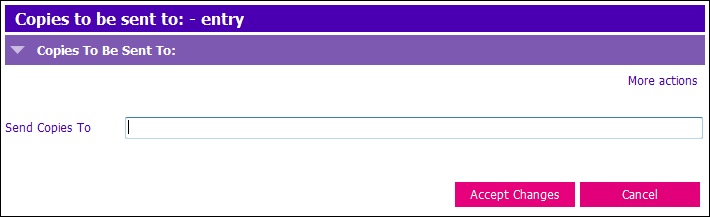
- Send Copies To: Enter the Name and the Fax number of the external provider
NOTE: If the Assessment has been End Dated (Closed), you cannot insert a row in the Copies To Be Sent To section. If that is the case, use the Assessment Casenote to enter the information.
4. Notify PA by using the Notify button.
PA Tips
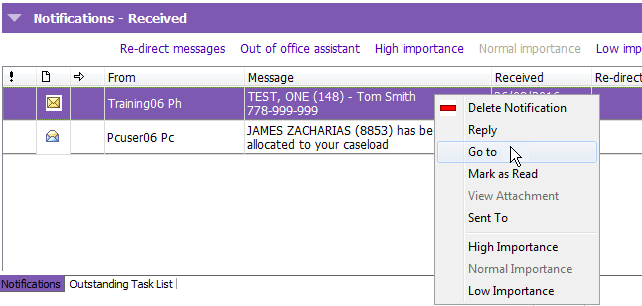
1. When you receive a notification from a Clinician (in your inbox), highlight the message and right click. Then select the option Go To.
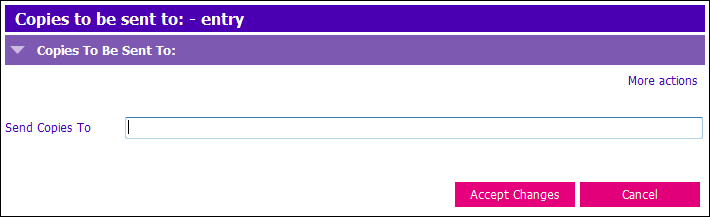
2. Go to the Copies To Be Sent To section of the Assessment to find out where to fax the Assessment. If Assessment has been end dated (closed), go to the Assessment Casenote to get the information you need.
If the Assessment is open:
If Assessment is end-dated:
1. Click on the  button in the Assessments toolbar and find the Assessment you would like to print.
2. Click Run Report and Accept Changes.
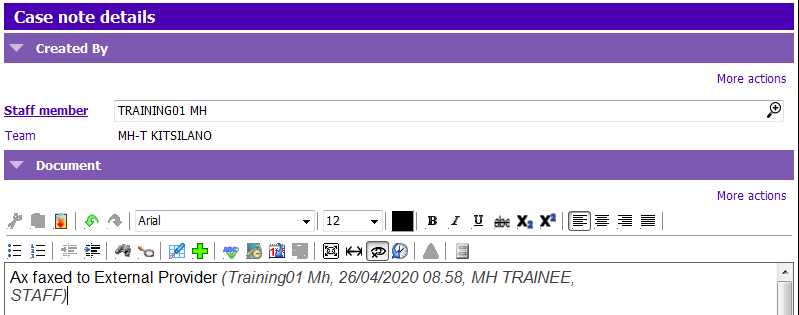
3. Go to the Assessment Casenote by clicking the  button in the Assessment toolbar and document that you have faxed the Assessment to the External Provider. Put your Date Stamp after the note by pressing Ctrl + T.
4. Click Accept Changes and F12 to Save.