Step 1: Log On to Network
Step 2: Desktop Shortcuts to Citrix
Step 3: The Citrix StoreFront
Step 4: Log into PARIS
PARIS is just one of the programs available on your computer. See the below steps to Access PARIS on your computer.
Step 1: Log On to Network
1. Hold down the Ctrl and Alt keys, then press the Delete key
2. Type in the User Name box:
- Your domain (e.g. vch, vrhb, phsa) followed by a backslash (\)
- Your Network User ID
- e.g. vch\csmith
3. Type your Network password (the password you use for your email) in the Password box.
4. Press Enter
Step 2: Desktop Shortcuts to Citrix
1. Double click on the Citrix Portal Applications folder 
There are shortcuts to some applications that sit on a Citrix server.
2. Double click on either Application Secure Access (SSO)or Application Secure Access (NOSSO) when signing in.
- Single Sign On (SSO) is signing in using your own log in username/password (own LAN).
- No Single Sign On (NOSSO) is signing in manually for the following reasons:
- The computer was signed in by someone else (this allows you to use your own LAN to open Citrix)
- Access to SSO is not working
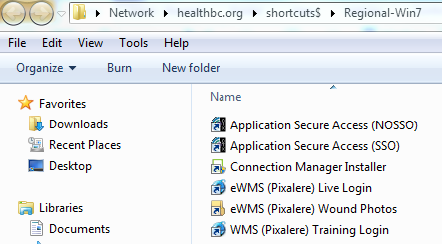
3. If you choose the Application Secure Access NOSSO shortcut 
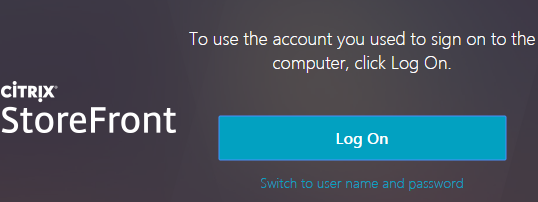
- Click the Log On button.
- Enter your LAN username/ password/ domain.
- Click Login.
4. If you choose the Application Secure Access SSO shortcut  , Citrix Applications page will automatically open.
Step 3: The Citrix StoreFront
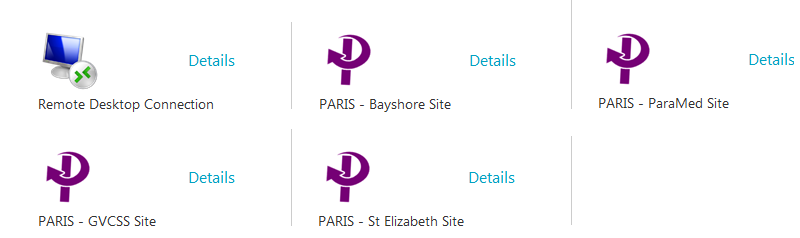
From the Citrix StoreFront screen double-click the PARIS icon

 |
 |
Access PARIS Training |
 |
 |
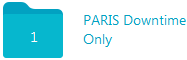
Access forms to use if PARIS is down by clicking on the PARIS Downtime Only folder and double click on the PARIS DOWNTIME ONLY icon |
 |
Access live PARIS - Double click on the PARIS icon (single click if accessing via Care Connect) |
Citrix Categories and other Icons

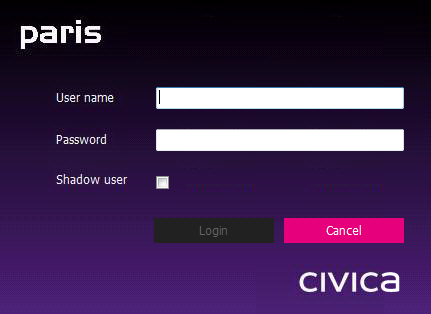
Step 4: Log into PARIS
 |
|
|
REMEMBER: |
 PARIS Timeouts after 2 hours of inactivity: