Access PARIS
Application Secure Access NOSSO
Application Secure Access SSO
Open Live PARIS
Open Training PARIS
Open Live CM
Open RISE
Access Hedgehog
At the start of your shift, log into the computer with your LAN (Local Area Network) username/ password/domain eg VCH or VRHB. Most staff have a personal username/password; some staff have a generic/shared usernames/passwords. If you do not typically log into a computer, follow the Generic sign in instructions.
|
On your desktop find the VPP (VCH PHC PHSA) Applications Folder icon. Double click on the VPP (VCH PHC PHSA) Applications Folder icon on your desktop. |
 |
| You see a list of shortcuts. | 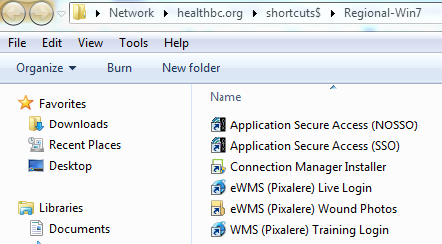 |
Access PARIS
These applications sit on a Citrix server. You need to use one of two shortcuts to get to the Citrix Applications page where you find your application(s) listed.
1. Double click on either Application Secure Access (SSO) or Application Secure Access (NOSSO) when signing in.
- Single Sign On (SSO) is signing in using your own log in username/password (own LAN).
- No Single Sign On (NOSSO) is signing in manually for the following reasons:
- The computer was signed in by someone else (this allows you to use your own LAN to open Citrix)
- Access to SSO is not working
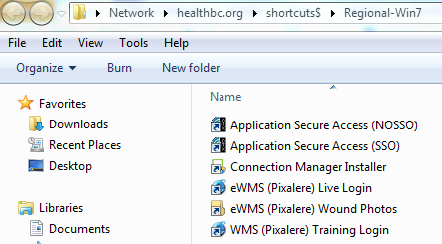
Application Secure Access NOSSO
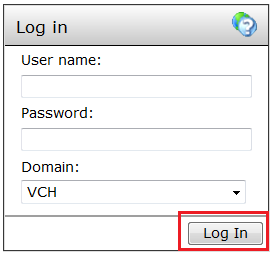
1. When you choose the Application Secure Access NOSSO shortcut, you need to enter your LAN username/ password/domain and then click Login.
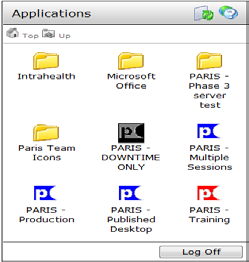
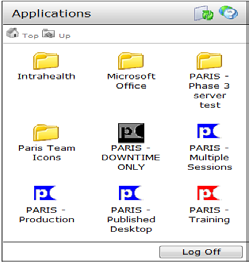
2. The Citrix Applications page opens.
You see the applications to which you are entitled to access. When you experience problems accessing your application, please contact the Service Desk.
Application Secure Access SSO
1. When you choose the Application Secure Access SSO shortcut, the Citrix Applications page automatically opens.
2. From time to time, when you click on the Application Secure Access SSO, the Citrix Pass-through window opens. Click the Log In button and Citrix automatically passes you through to the Citrix Applications page.
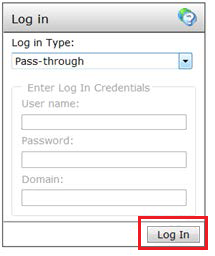
3. When the automatic pass-through process does not work then use the Application Secure Access NOSSO shortcut.
Open Live PARIS
1. Click on the purple PARIS - Production icon 

Open Training PARIS
1. Click on the grey PARIS – Training icon.
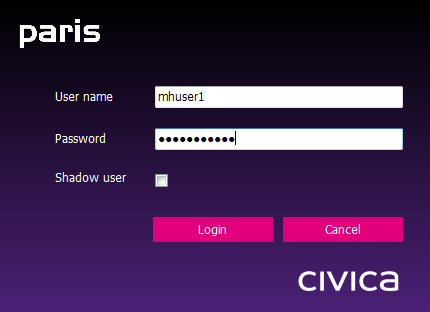
2. When the “PARIS Login” box appears, enter your PARIS user name and password.
3. Click the Login or press Enter to login.
Open Live CM
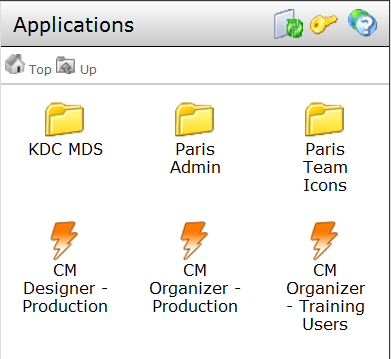
1. Click on CM Organizer – Production icon.
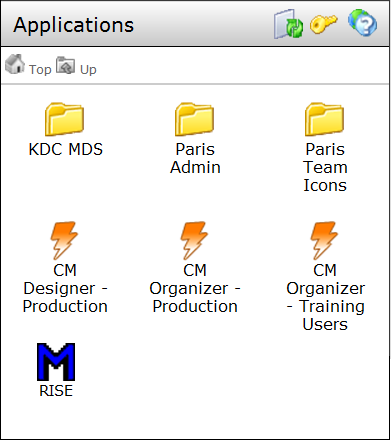
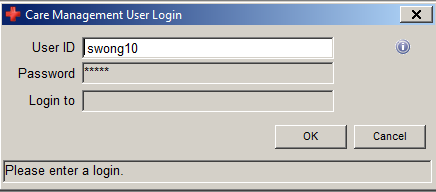
2. When the Care Management User Login page displays, enter your User ID and password and click OK.
Open RISE
1. Click on the RISE icon
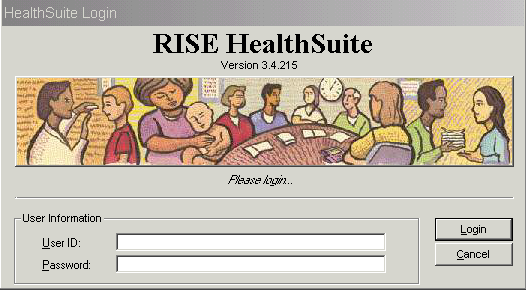
2. When the RISE Health Suite Login page displays, enter your User ID and Password and click Login.
Access Hedgehog
1. Double click on your Application Secure Access icon on your desktop.
2. Enter your user name, password and domain to the Citrix login screen. Click Log In.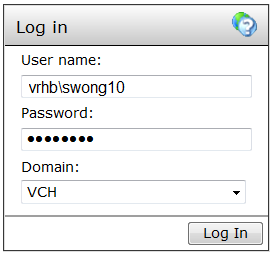
3. The Citrix Applications page opens. You see the applications to which you are entitled to access.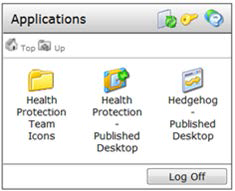
NOTE: Health Protection – Published Desktop takes you to Hedgehog.net.
Hedgehog – Published Desktop takes you to Hedgehog Classic
4. Click on Health Protection – Published Desktop, the published desktop launches and opens to the start menu. Click on Hedgehog Production.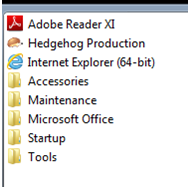
5. The loading screen appears. Once it launches, you are in the tool.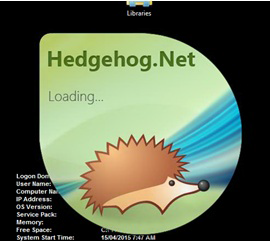
When you are finished working in the application close out. Then click on the  in the top right hand corner of the screen to close out of Citrix.