Check your program guidelines to learn when you’re supposed to end date your Assessments.
- Most Assessments are end dated once complete, with the exception of scored or “ongoing” assessments
- Once you End Date an Assessment it becomes Read Only and no changes can be made
- You must end date all Assessments associated to the Referral before discharging the Referral
- MH Assessments with an Authorization tab are “end dated” by entering the Closing Authorizer
1. In the Assessments Options Tree, click on the beside your team and the type of assessment you wish to discharge if not already expanded.
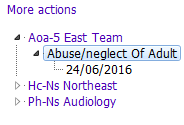
2. Click on the date underneath the assessment you wish to close, and the assessment will open on the right:
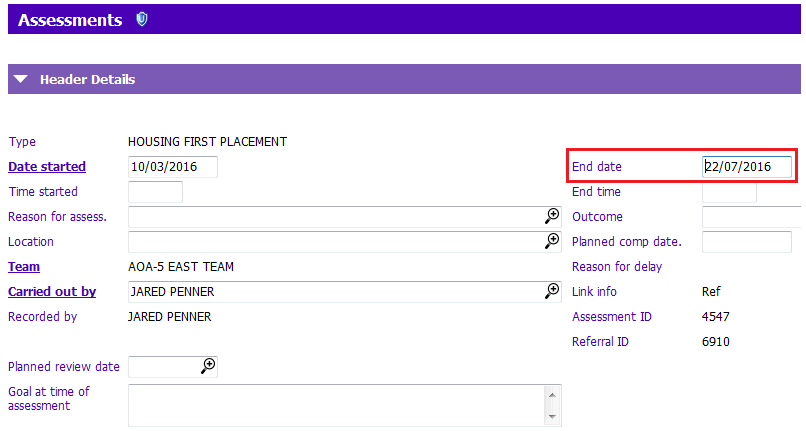
3. In the Header Details section update the End Date field:
- End date: Enter a date (Ctrl-T for today’s date). PARIS date format: DD/MM/YYYY.
4. Press F12 to Save. This Assessment will now be read-only – you will not be able to make any changes.
End Date an MH Assessment
For Assessment Tools
1. Fill in the following field:
- End date: Enter appropriate date on the Details tab
2. Press F12 to Save
For Assessments
1. Click on the Auth tab. Expand the Authorization Details section
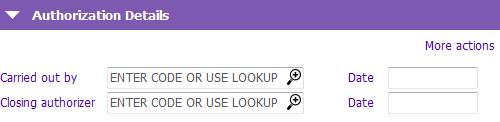
2. Fill out the following fields:
- Carried out by: Choose appropriate name
- Date: Enter appropriate date
- Closing authorizer: Choose appropriate name
- Date: Enter appropriate date
3. Press F12 to Save