Create new Prescription order
Pharmacy Search Tips
Generate Rx
Modify a Prescription
Copy a Prescription order
Mark a Prescription order Entered in Error
Additional Resources
The Prescription Pad grid allows MHSU Prescribers the ability to create prescriptions and send via email directly from PARIS utilizing the SRFax. The Prescription Pad is currently only used by MHSU Prescribers.
The Prescription Pad is a standalone application, and can also be accessed through Clinical Summary.


Create new Prescription order
1. Click Insert a row

2. The Prescription pad – entry window will appear:
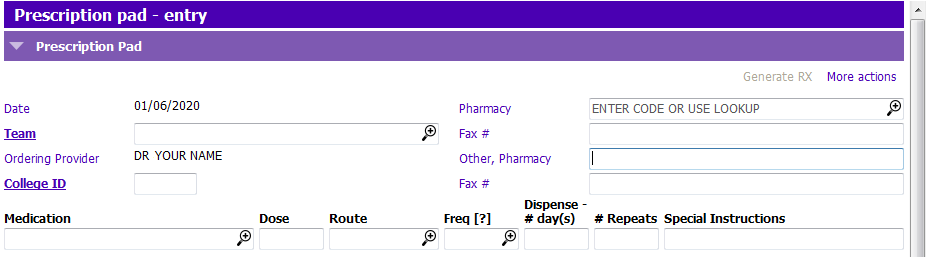
3. Enter the following prescribing and Pharmacy information:
- Date: Auto-populates to today’s date
- Team: If you are on more than one PARIS team, select the appropriate team from the Team lookup dialog, if not your team will auto-populate
- Ordering Provider: This auto populates logged in user’s name ONLY IF they have one of the specified Professions (e.g. Physician or Nurse Practitioner)
- College ID: Enter your college ID
- Pharmacy: Click on the magnifying glass and use type and find to select the appropriate pharmacy, if the pharmacy is not in the list enter the Pharmacy and Fax number in Other, Pharmacy and the associated Fax # fields
- Fax #: The selected pharmacy’s fax # will display
|
 Pharmacy Search Tips
4. Enter the medications for the client:
- Medication: Type in medication name or click on the magnifying glass and use the type and find to find the appropriate medication
- If the medication is not found select ‘OTHER’ from the lookup picklist and enter the medication in the Other, specify field that will appear once OTHER is selected
- Dose: Enter the medication dosage- include the units
- Route: Enter the route of the medication
- Freq (?): Enter the frequency of the medication- Hover Tip- includes how to enter a PRN
- Dispense - # day(s): Enter the number of days
- # Repeats: Enter any repeats if applicable
- Special Instructions: Enter any special instructions (50 character Limit)
- Additional Information: May be used to add other applicable information (250 Character Limit)
5. Click Accept Changes. After you press Save, the prescription cannot be modified
6. Save
Generate Rx
1. To generate the Prescription Order, highlight the row in the grid that you would like to order and click Generate Rx
NOTE: If the Generate Rx is greyed out, ensure you have clicked Save at the bottom of the screen.

2. A Report options pop-up will appear. Click Run Report.
NOTE: To print the Prescription Order, change the Output file type to “Send report to printer”

3. The prescription will appear as a PDF
Modify a Prescription
New prescription entries can be modified after the user clicks Accept Changes but has not clicked Save. Upon Save, the prescription order becomes un-editable and can only be marked as Entered in Error if required.
Copy a Prescription order
1. Select the row that you want to copy.
2. Click the Copy Current Row button.
3. The Prescription Entry window will appear with the copied contents.
- Date
- Team
- Ordering Provider
- Pharmacy
- Medication
- NOTE: The College ID will need to be re-entered.
4. Modify the Medication information and/or Pharmacy information as required
5. Accept Changes
6. Save
Mark a Prescription order Entered in Error
1. Select the row that is in error by clicking on the row
2. Click the Modify Row button.
3. At the bottom of the Prescription order form, click the tick box Entered in Error
4. Accept Changes
5. Save
6. The grid row will disappear from the default view
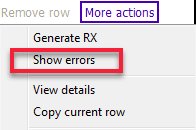
7. To view and or copy this Entered in Error row, click on ‘More Actions’ > ‘Show Errors’
Additional Resources
How to create an email signature –Tip sheet
Prescription Pad FAQ
Prescription Pad Video (eLearning link)
Prescription Pad Tipsheet