To be printed after clinic results data entry: This report shows immunizations entered via Ad Hoc Entry, from the dates you have entered into the ‘Date From’ and ‘Date To’ fields. It is used to validate data entry.
Important: In order for this report to be accurately generated, it is important that clinicians enter “clinic” in the Location type field when entering immunizations in the Imms Entry Adhoc application. Given by role defaults to Internal Team –Other. Do not change this.

To generate the report:
1. Go to the Reports application OR access Immunization Reports via any of the Immunization Reports on Applications
 |
 |
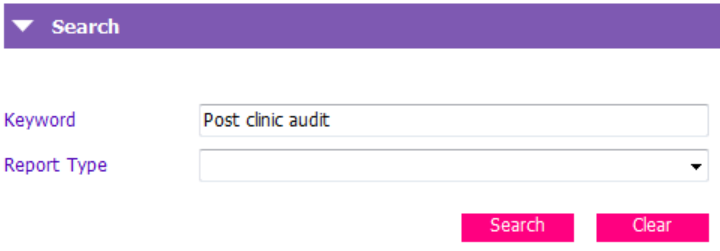
2. In the Search grid, in the Keyword free text field, type in “Post Clinic Audit” and click the pink search button.
3. The report will appear in the Reports grid. Ensure it is highlighted and choose “Run report”
Note: you can click Add to favourites if you use this report regularly. This will add it to the Favourite Reports grid

4. Report Options box appears.
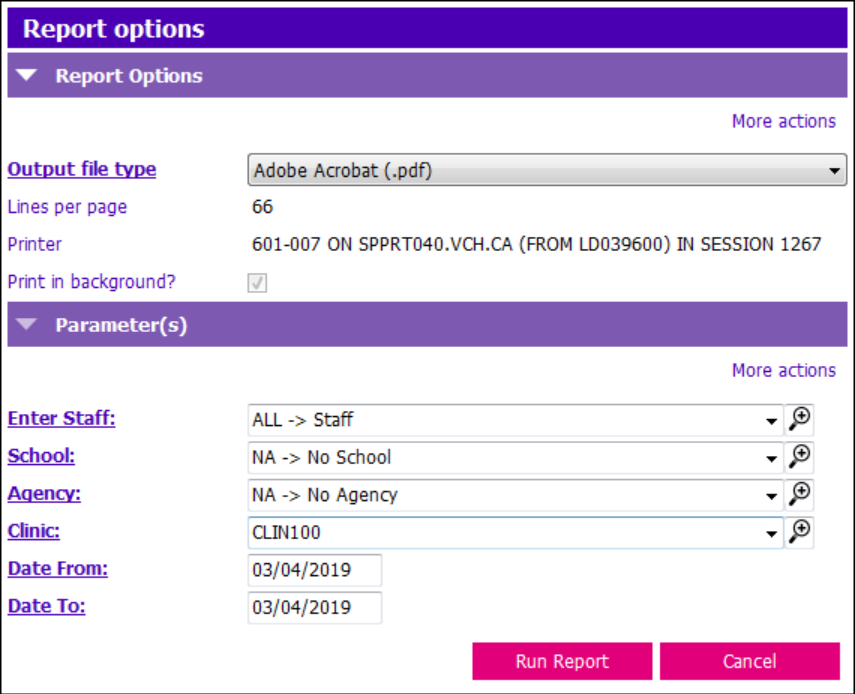
5. Enter Staff: choose ALL - Staff from the drop down or click on the magnifying glass and search for a name
6. School: choose NA - No School from the drop down
7. Agency: Select NA - No agency from the drop down.
8. Clinic: Click on the magnifying glass. A search pop will appear. In the Type field, click on the drop down and choose “Clinic”. In Type & find, search for your clinic. Highlight your selection and click the pink “Select” button.
Note: if you know your clinic code, you type the code in to bypass these steps
9. Date From: Enter the date that entries were made.
10. Date To: Same date as Date From or enter in a range e.g. 1 week
11. Click the pink Run Report button.
12. Verify the data entered into Paris by comparing your Campaign Results Worksheet, paper consents and Post Clinic Audit report.
13. Initial the audit to verify you have checked it and hand it to the PA for filing.
*Remember to enter any Alerts or Immunization Casenotes prn*