Cancel an Order
Edit/Unlock a Submitted Order
End Home Support Order
Add an Error Note to an Order
The Home Support Orders Application allows users to edit Home Support Orders before or on the day of Home Support Orders. This allows the user to go back and make modifications as necessary reducing confusion about what order is valid.
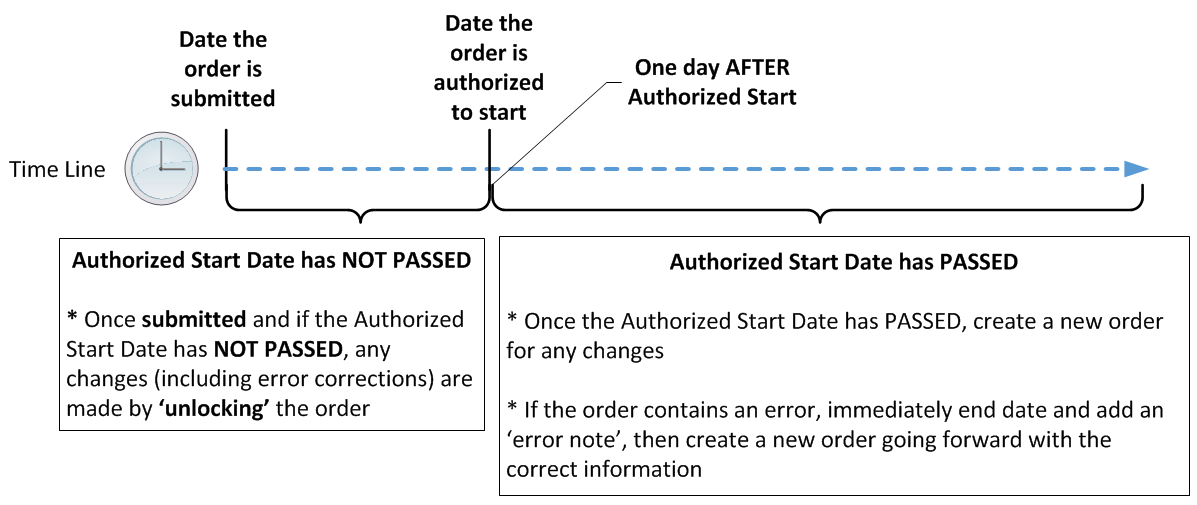
The following illustration shows the different processes according to dates when looking to modify a home support order.
Cancel an Order
An order can be cancelled if the order status is in Draft or Submitted. Cancelling an order will change the order status to Cancelled which is displayed in the orders tree. A reason for cancelling a submitted order will be required.
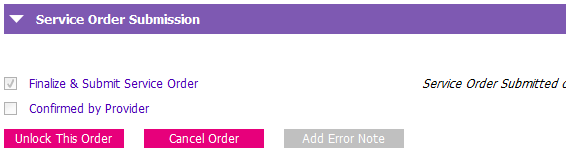
To cancel a Draft or Submitted order, go to the Service Order Submission section:
1. Tick Cancel Order. 
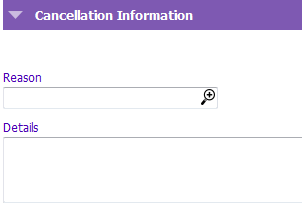
A mandatory Reason and Details field will appear if the order had previously been submitted.
2. Enter a Reason and Details for cancelling the order if required.
3. SAVE
The status of the order will change to Cancelled, which is displayed in the forms tree. The cancelled order will appear in the provider’s Home Support Notifications Report if the order had previously submitted, however, ensure that standard documentation practices and communication with the Provider is followed (e.g. casenote, phone call etc.).
Edit/Unlock a Submitted Order
If the Authorized Start date of an order has not passed (i.e. on or before the Authorized Start date), the order can be “unlocked” and edited. There are a few scenarios when this would be used:
i. After submission but before service has started, new order changes are identified
ii. After submission but before service has started, information was missed or not entered correctly
iii. Service starting the same day as submission, and additional information is required
The diagram below illustrates when an order can be “unlocked” and edited, and when a new order would be required, including adding of an error note. See Adding an Error Note for more information.
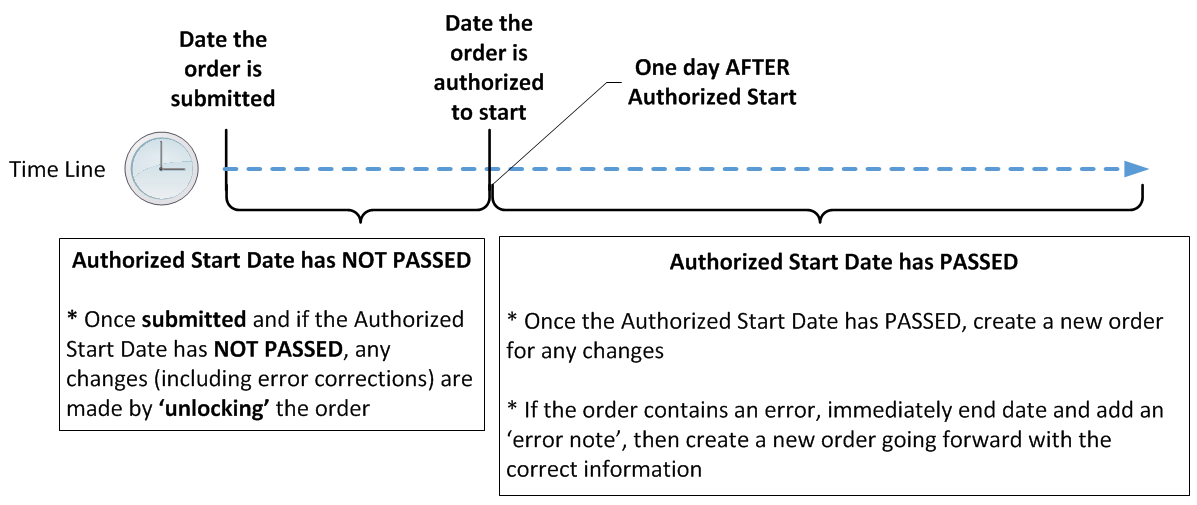
A reason and details for revising the order will be required and the order must be re-submitted before the edits can be saved. Revised orders will appear in the provider’s Home Support Notifications report; however the details of the changes are not outlined in the report. Contact the provider and follow standard documentation practices as necessary (e.g. casenote, etc.).
To unlock and revise an order:
1. Scroll to the Service Order Submission section and press the Unlock This Order button.
A mandatory Reason and Details field will appear
2. Enter a Reason and Details for revising the order.
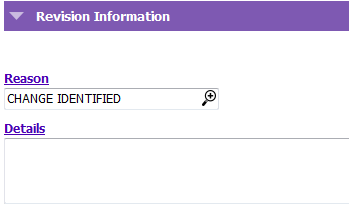
3. Edit the order as necessary.
4. Re-tick the Finalize & Submit Service Order.
5. SAVE
End Home Support Order
The Authorized End date indicates when a particular order ends.
On an existing order, if the order does not have an end date, one will automatically be entered when a new order is submitted. The end date entered will be one day prior to the Authorized Start date of the new order.
When home support service is no longer being provided (i.e. no further orders), the last remaining order is end dated before the client can be discharged from Home Support.
To end an order:
1. Select the order to end from the tree.
2. Enter the last day of service in the Authorized End.
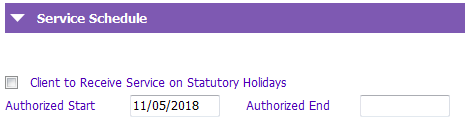
3. SAVE
If the final order ends today or in the past, the client’s Home Support will be available for discharge. See Discharging a client from Home Support for information on discharging.
Add an Error Note to an Order
If a documentation error is discovered in an order after service has started, the order should be end dated and an error note added describing in detail what the error in the order was.
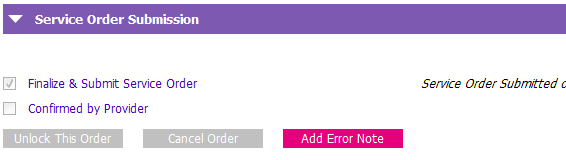
To add an error note to an order:
1. Ensure the order has order has been end dated.
2. Scroll to the Service Order Submission section and press the Error Note button.
A mandatory Reason and Details field will appear.
3. Enter a Reason and Details of what was in error in the order.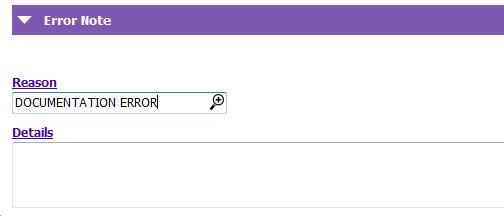
4. SAVE
If service is continuing, enter a new corrected order going forward.