1. Click on the Team Caseload Application
2. On the Caseload tab expand the appropriate team list
3. Click on the name of the staff member you wish to transfer FROM
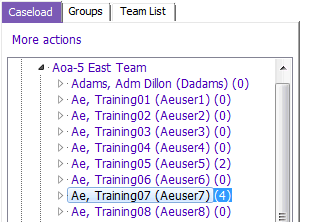
4. Click on  in the Team Caseload toolbar and select Case transfer view:

5. A list of clients displays on the right in the Case Transfer- Staff View section:
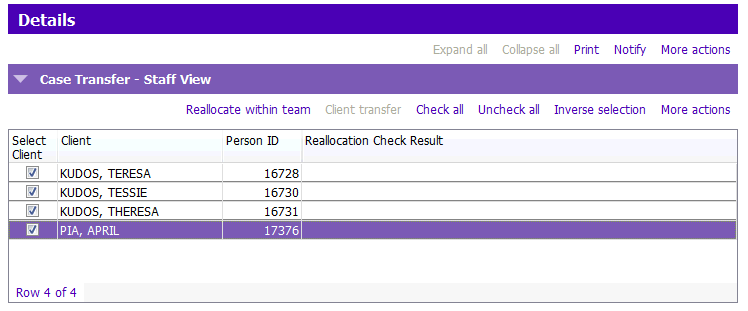
- Click Check all to select ALL clients or double click the check boxes beside the selected clients to insert a check mark if not all clients are being transferred
6. Click Reallocate within team
7. The Transfer within team window appears:
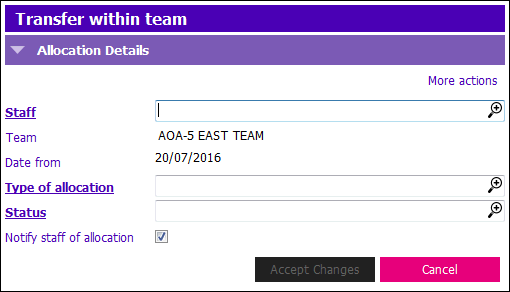
8. Complete the mandatory fields:
- Staff: Click the
 and select the staff member who will receive the client(s)
 - Type of allocation: Click the and select the appropriate item from the picklist
- Status: Click the and select the appropriate item from the picklist
9. Click Accept Changes or press Enter. If the clients have open assessments the Confirm message appears.
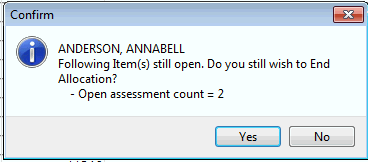
Click Yes to confirm ending the allocation. If you are transferring multiple clients this message may appear multiple times.