1. Click on the Risk Screen Application.
2. If the client has another family member identified in Associated People as relationship type of Family, their name and PARIS ID will appear in the Risk Screen Copy section.
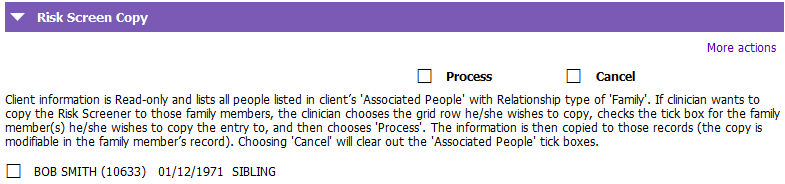
3. If you want to copy an existing Grid Row, click on the Grid Row you want to copy, then tick the box beside the family member you want the entry copied to.

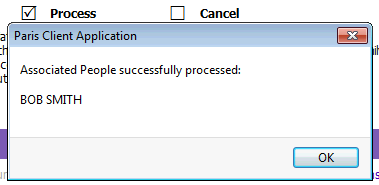
4. Tick the tick box beside Process. The Paris Client Application window will appear, click OK. The CRS will now appear in that family member’s record.
5. If you are completing a CRS and want to copy it right away, complete the CRS. Accept. SAVE. Tick the box beside the family member you want the entry copied to. Press SAVE. The CRS will now appear in that family member’s record. You must press save between creating a grid entry and copying a grid entry, or you will not be able to tick the box and the record cannot be copied.
6. WORKFLOW Note: When you have ticked Risk and completed a Control Plan, an Alert is automatically triggered in the original record. When you copy that same CRS to a family member with the Risk and Control Plan, an Alert is automatically triggered in that family member’s record:
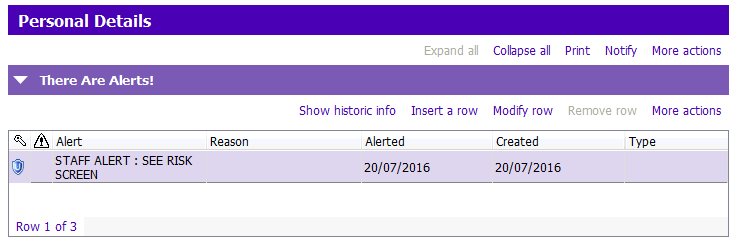
NOTE: If the Risk is removed, the Alert is automatically ended in the original record. If that same CRS is copied (one without any risks), the family member’s Alert will also automatically be removed.
7. Once you have copied the CRS, go immediately to the family member’s record. Review the CRS, making required changes. The copied row will have a check mark under the ‘copy row’ grid column so you can tell which one was copied from another record.
8. Double check the Alerts are consistent with the current CRS (i.e. If there is no Risk identified, there is no Alert. There is an Alert if a Risk was identified).