NOTE: Group Sessions cannot be edited in the Group Charting Application if the group session has already been signed off. Edits and additions must be done in the individual client Casenote Application.
1. Click on the Group Charting Application.
2. Tick the TICK TO START (SELECT A GROUP) tick box and choose the appropriate group from the 'Groups for current user' window:
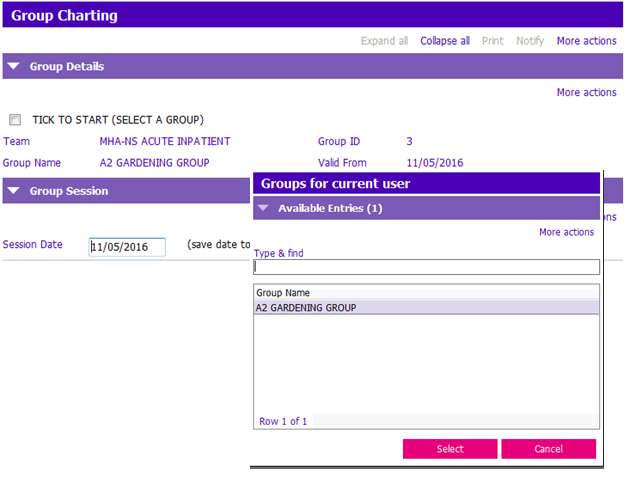
3. Enter the date the group session was on, in the Session Date field.
4. Press F12 or click Save to retrieve the existing group session. Note that nothing is being saved or created here, this is just a necessary step to load the session.
5. Continue charting the group session. (i.e. Session Note, Attendance, Individual notes).
6. Verify that all charting is accurate and complete.
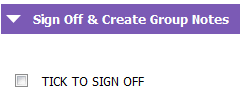
7. Tick the ‘TICK TO SIGN OFF' tick box. The group session must be signed off for the group case note to appear in the client’s chart.
NOTE: Only one name may be attached to the documentation.
8. Press F12 to Save. Once documentation is saved, case notes will be created in the Clients’ individual PARIS record. To review documentation, please use the Client’s case note module or print relevant reports.