

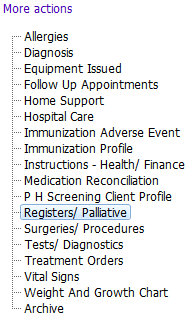


This grid indicates what registers the client has been, or is currently on; it is read-only and populated from the Registers module
There are currently two registers – Palliative and Palliative Evening/On Call
See PARIS Palliative Register Guidelines and Palliative Evening/On Call Guidelines for field definition and instruction for use for both registers.

This person-based grid records the client's prognosis.

The Palliative Performance Scale is an 11 point clinical assessment tool designed to measure the functional performance status of palliative care patients. This serves as a communication tool for quickly describing a patient's current functional status.
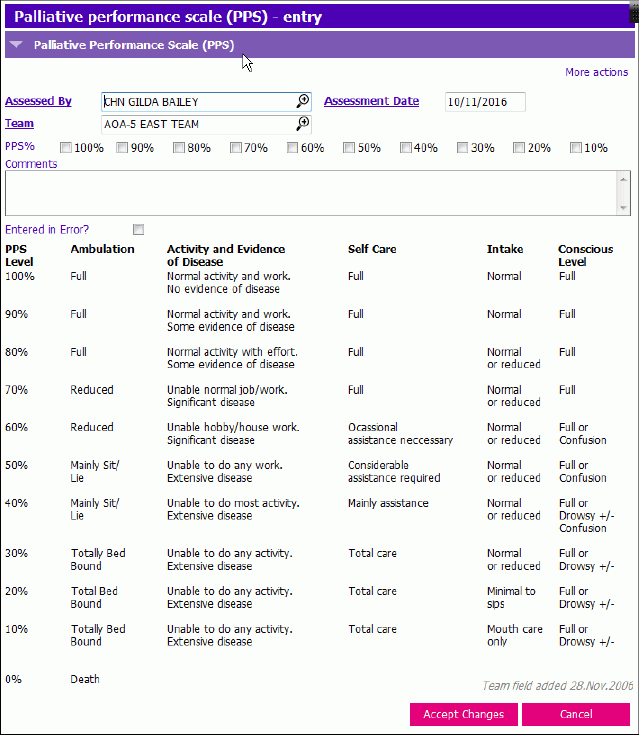
This person-based grid is located in a number of palliative clinical documentation forms including the Palliative and Palliative Evening/On Call Registers.

This person based form shares information with the same grid within the Instructions-Health/Finance node of Clinical Summary, Integrated Client Viewer, Palliative Register, and two assessments (i.e. Palliative Shift Care, Interdisciplinary).
For palliative entries, staff have the ability to upload the associated document.
Steps to Scan and Save Files for Uploading
- Scan and email the completed form to your work email address (e.g. jim.smith@vch.ca). The email and attached file are sent to your Outlook inbox.
- Open Outlook and the email with the attached scanned file.
- Right click on the file and select Save As. The Save Attachment window displays.
- Select your home directory (H:) from the list of available locations.
- Enter File Name following the format of date, brief description of file, client initials (e.g. 2022-05-01 Notif JD) to create a unique filename.
- Click Save. The Save Attachment window closes displaying the email window. The file is saved in your home directory and is now ready for uploading.
Enter Client Instructions

- Click Insert a row and the (Team) Search window will display. Select the appropriate team and the Client Instructions for Health Care entry window will display.
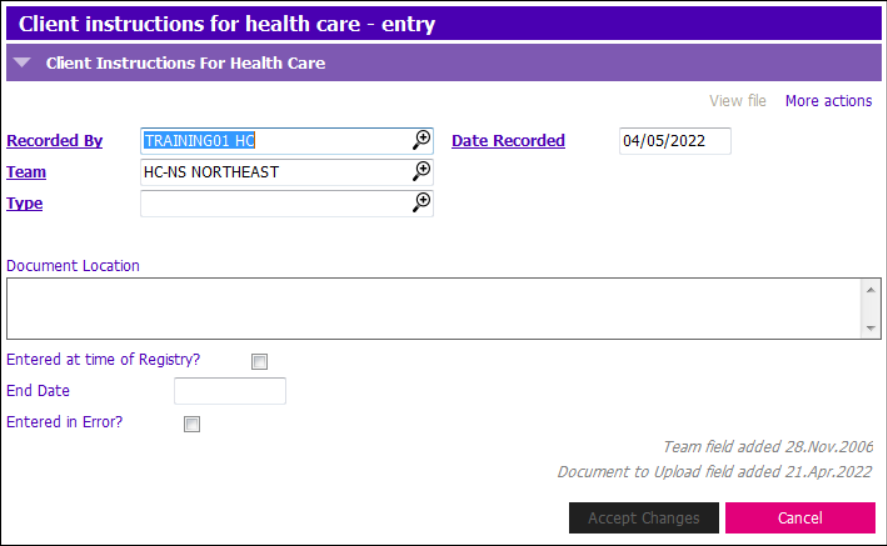
- Enter the following fields:
- Recorded By: Defaults to the logged on user
- Date Recorded: Defaults to today's date
- Team: Defaults to the selected team
- Type: Select appropriate type of instruction
- Document to Upload: Label is visible when a Palliative type is selected. To upload a document, click Attach File. Windows Explorer will display. Select the PDF file to upload from your home directory (H:). Click Open. Filename will display adjacent to the Document to Upload label.
- Document Location: Enter if required
- Entered at time of Registry?: Tick if entry was made at time of registry
- End Date: Enter date when the instruction is no longer applicable
- Entered in Error?: Tick if an entry has been made in error and/or an incorrect document was uploaded. The attached file will be removed and can no longer be viewed.
- Click Accept Changes and press F12 to Save.
 Tip: As of May 31, 2022, the following palliative documents can be uploaded:
- GP/NP Contact Request
- Hospice Admission Agreement (please note: this is not the Hospice/LTC Consent form that is uploaded into the Consent Forms node)
- Hospice Referral Form
- MOST Form
- No CPR
- Notification of Expected Death
- Short-Stay User Fee
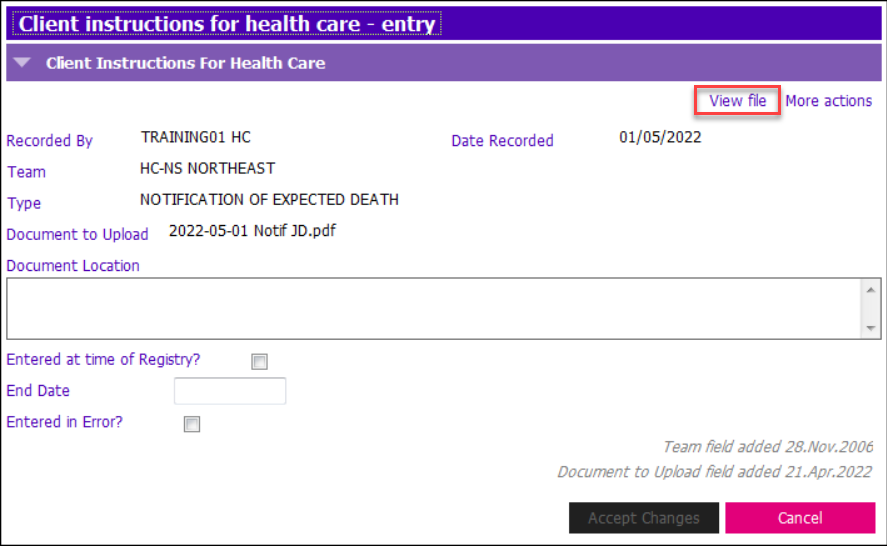
View Attached File
Attached files can be viewed one of two ways:
- Highlight the appropriate row in the grid.
- Click View file
- File will open

- Highlight the appropriate row in the grid.
- Click View details or Modify row
- Click View file within the entry screen
- File will open

This person based form shares information with the same grid within New Registration, the Funding/Eligibility node of Central Index, Integrated Client Viewer, Palliative Register, Financial Assessment, and two assessments (i.e. Hospice/Hospice Respite Ref, Access Central Assessment).
Staff have the ability to upload the BC Palliative Care Benefits form.
See Steps to Scan and Save Files for Uploading above.
Enter Funding and Income Sources

- Click Insert a row and the Funding and Income Sources entry window will display.
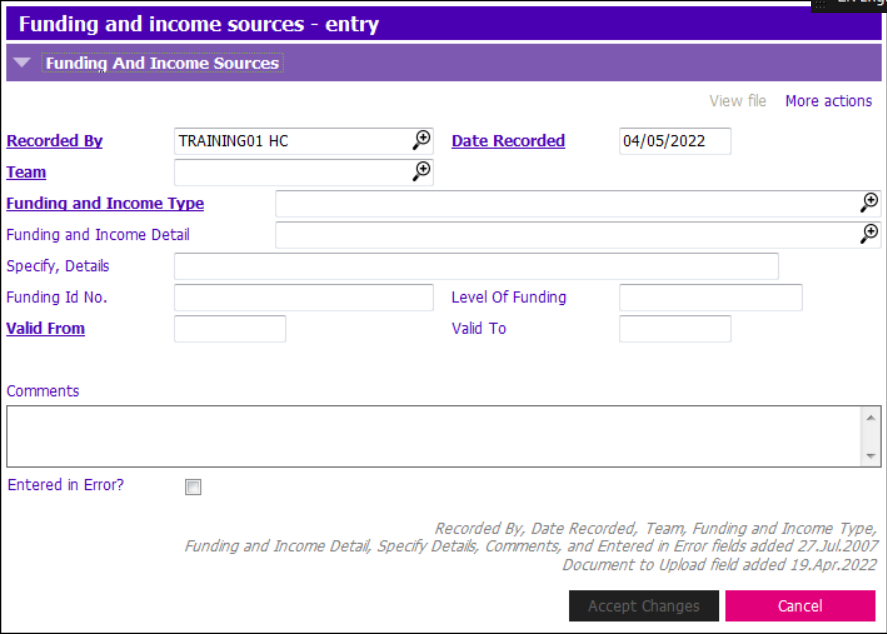
- Enter the following fields:
- Recorded By: Defaults to the logged on user
- Date Recorded: Defaults to today's date
- Team: Select the appropriate team
- Funding and Income Type: Select appropriate type
- Funding and Income Detail: Select appropriate form/detail
- Specify, Details: Enter if required. Mandatory if Funding and Income Type = Other.
- Funding Id No.: Enter if required
- Level of Funding: Enter if required
- Valid From: Enter date the funding and income source became available
- Valid To: Enter date when the funding and income source is no longer applicable
- Document to Upload: Label is visible when BC Palliative Care Benefits form is selected. To upload the document, click Attach File. Windows Explorer will display. Select the PDF file to upload from your home directory (H:). Click Open. Filename will display adjacent to the Document to Upload label.
- Comments: Enter if required
- Entered in Error?: Tick if an entry has been made in error and/or an incorrect document was uploaded. The attached file will be removed and can no longer be viewed.
- Click Accept Changes and press F12 to Save.
View Attached Files
The attached files can be viewed one of two ways:
- Highlight the appropriate row in the grid.
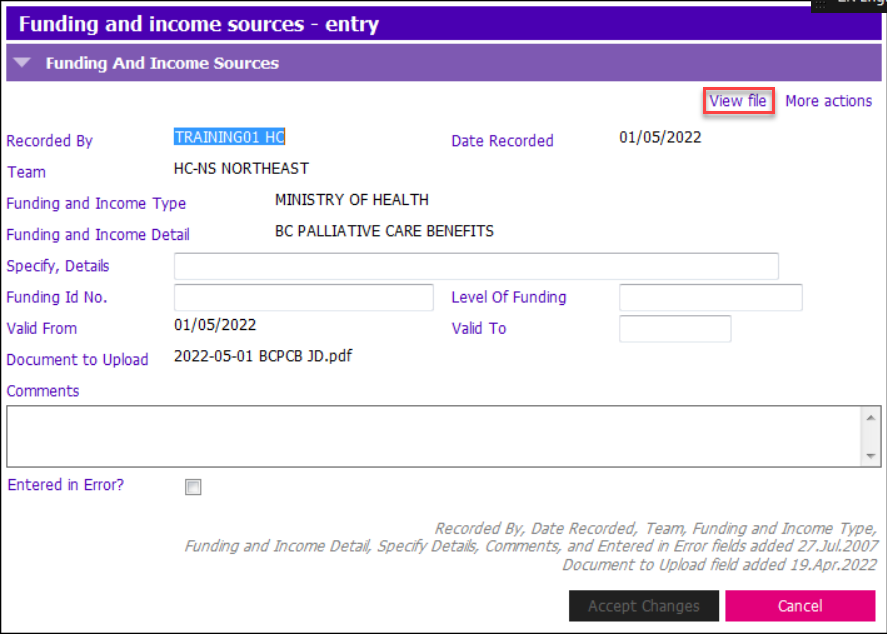
- Click View file
- File will open

- Highlight the appropriate row in the grid.
- Click View details or Modify row
- Click View file within the entry screen
- File will open
See PARIS Person Based Section Guidelines for field definition and instruction for use.
Related Links
Deleting PDF Files from your Home Drive
Save a Scanned Assessment File to your Home Drive Demonstration