Alerts can be added from the Client Banner. If there are Alert(s) on a client, the Alert Icon  will appear in the Client Banner at the top of every screen.
1. To expand the Client Banner, click the purple arrow  or click anywhere on that row.
The Client Banner expands.
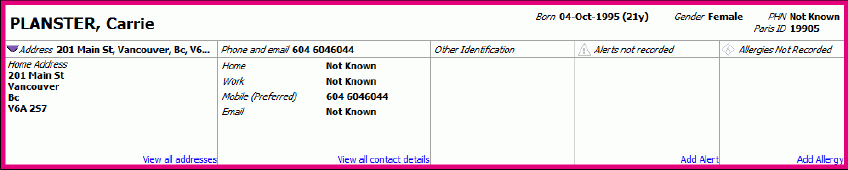
2. When no alerts are recorded:
Click Add Alert link in the Alert column. The Alert maintenance window displays.
OR
When at least one alert is recorded:
Click View all Alerts link. The Alert maintenance window displays.
3. Click Insert a row in the Alert grid.
4. Complete the following:
- Alert:
When you know the Alert Code or Description you can start to type it in the Alerts field.
The predictive text list displays.
OR
Press F4 or click the lookup icon .
.
The Alerts lookup window will appear.
Select the appropriate Alert from the picklist
- Reason:
This is an optional field. A 50 character free text message may be added. - Alerted on/ Alerted at:
Auto-populates with the date and time the Alert is entered.
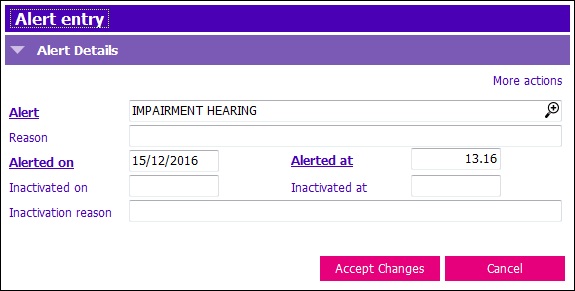
5. Click Accept Changes.
The completed Alert maintenance window displays the Alert in the grid.
6. Click Accept Changes.
The Alert grid closes. The alert displays in the client Banner.
An exclamation icon indicates there is an alert.

 As of Jan 19, 2017, Alerts for Allergies are no longer entered.
- See Allergies.