
- To delete text: Highlight the text and press the Delete or backspace key on the keyboard. The deleted text is removed, but will display in red with a strike through in the previous version of the casenote
- To type new text: Click on the area where the new text needs to appear and begin typing. The new text appears in black, but will be blue in the previous version of the casenote
- Note: Colours are only shown when Hide Changes is toggled off, else changes are shown in black text.
Press F12 or click Save frequently to save your changes
See Link a Casenote to the Clinical Care Plan, Mark Field, Grid Row or Casenote as Crucial and Copy a Casenote for more information on how to edit a casenote.
Caseload Formatting
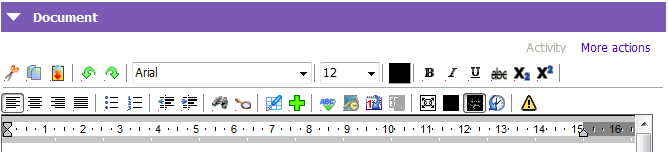
The document section of the Casenote form includes icon function buttons which can be used to format the note. Below is a legend which describes the purpose of each icon:
| Icon | How to Use |
 |
Cut: Cut any text. Highlight and select the text you wish to cut and click the  icon to cut (remove) the text. icon to cut (remove) the text. |
 |
Copy: Copy any text. Highlight and select the text you wish to copy and click  the icon to copy. the icon to copy.Paste: Paste any cut or copied text. Click the  Icon to paste any copied or cut text. Icon to paste any copied or cut text. |
 |
Undo/redo: Undo or redo any changes made to case note. Click the  icon to undo changes that were made. Click the icon to undo changes that were made. Click the  to redo changes. to redo changes. |
 |
Font Selector: Change the font. Click the drop down arrow beside the font to view different fonts. |
 |
Font Size/Colour Selector: Change the font size or colour. Click the drop down arrow beside the font size to view different font sizes. Click on the colour to view and change colour of font. |
 |
Bold: Change text from regular to bold. Highlight text you wish to bold and then click the  icon. icon.Italicize: Change regular text to italicize. Highlight the text you wish to italicize and then click the  icon. icon.Underline: Change text from regular to underlined. Highlight the text you wish to underline and then click the  icon. icon.Strikethrough: Change text from regular to strikethrough text. Highlight the text you wish to strikethrough and then click the  icon. icon. |
 |
Subscript text formatting. Superscript text formatting. |
 |
Alignment: Click the  icon to align text on the left, click icon to align text on the left, click  icon for centered text, click icon for centered text, click  icon to align on the right, and click icon to align on the right, and click  icon for justified text. icon for justified text. |
 |
Bullets: Add bullet points. Click the  icon to start a bulleted list. icon to start a bulleted list.Number: Add a numbered list. Click the  icon to start a numbered list. icon to start a numbered list. |
 |
Indent: Indent any text to the left or right. Click the icon the indent text to the left, and click the icon the indent text to the left, and click the  icon to indent text to the right. icon to indent text to the right. |
 |
Search: Search for words/phrases within a case note. Click the  icon to search within the case note. icon to search within the case note. |
 |
Zoom: Zoom in to increase size of text. Click the  icon to zoom in on the case note to your preference by selecting your desired zoom percentage. icon to zoom in on the case note to your preference by selecting your desired zoom percentage. |
 |
Table: Insert a table. Click the  icon to insert a table within your case note. Please do not use this functionality to insert tables since these are not supported and may not print icon to insert a table within your case note. Please do not use this functionality to insert tables since these are not supported and may not print |
 |
Insert: This will allow you to insert: page break, page number, page count. Please do not use this functionality to insert files or images since these are not supported and may not print. |
 |
Spell check: Checks casenote for spelling errors. Click the  icon to perform spell check on everything you have typed. icon to perform spell check on everything you have typed. |
 |
Library Text insert pre-set headings in your documentation |
 |
Timestamp (Ctrl +T): Add your signature and timestamp to case note. Click the  icon to insert your signature and timestamp at the end of your Case Note. (Or press Ctrl +T) icon to insert your signature and timestamp at the end of your Case Note. (Or press Ctrl +T) |
 |
Full Screen: View case note in full screen. Click the  icon to view the case note in full screen. icon to view the case note in full screen. |
 |
Fitted View: View case note on a fitted screen. Click the  icon the fit the case note to the screen size. icon the fit the case note to the screen size. |
 |
Hide Changes: Hide any changes made to case note. Click the  icon to hide or reveal the changes made to the case note. icon to hide or reveal the changes made to the case note. |
 |
Version History: Review all revisions made to the case note. Click the  icon to view the revision history of this case note. icon to view the revision history of this case note. |