Mark Field Crucial
Mark Grid Row as Crucial
Mark Casenote Crucial
Related Links


Information can be made Crucial on a client's record. The crucial information Comments text box only holds 250 characters- Crucial information notes must be clear and concise.

Mark Field Crucial
1. Click on the information (this can any field, or text entry).
2. Right-click the mouse, a menu will appear:
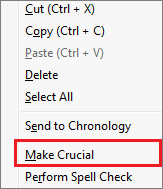
3. Select Make Crucial from the menu, the 'Crucial information - make item crucial?' window will appear:
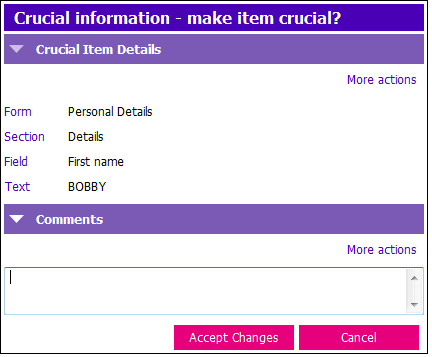
4. Click in the Comments box; enter a text message (maximum 250 characters) NOTE: Messages should be clear and concise. All PARIS users need to be able to understand your message.
5. Click Accept Changes
- The data marked crucial will now be highlighted in yellow.
Mark Grid Row as Crucial
1. Click on highlight the grid row you wish to make crucial then click on More Actions.
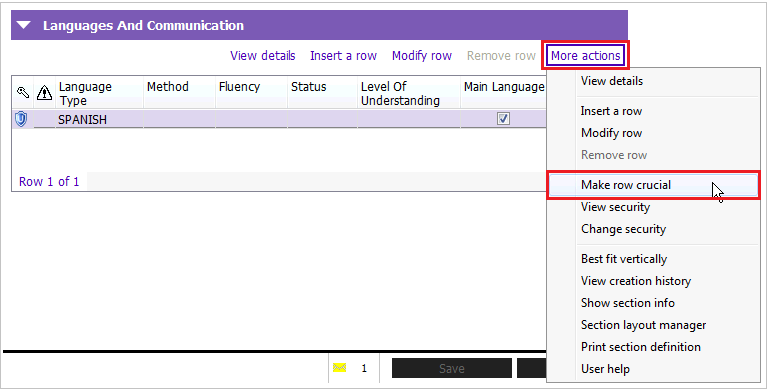
2. Select Make row crucial from the menu, the crucial information - make item crucial? window will appear.
3. Click in the Comments box; enter a text message (maximum 250 characters). NOTE: Messages should be clear and concise. All PARIS users need to be able to understand your message.
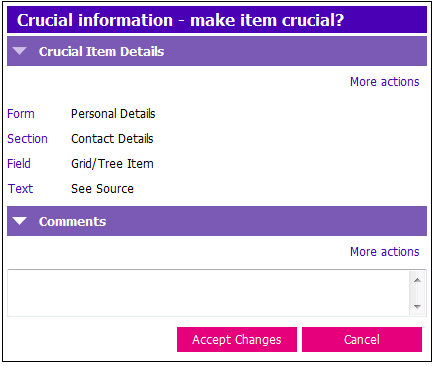
4. Click Accept Changes & F12 to Save.
Mark Casenote Crucial
You can mark an entire casenote Crucial Information or you can mark part of a casenote as Crucial Information.
Mark Entire Casenote as Crucial Information
1. Select the casenote in the Casenote Option Tree.
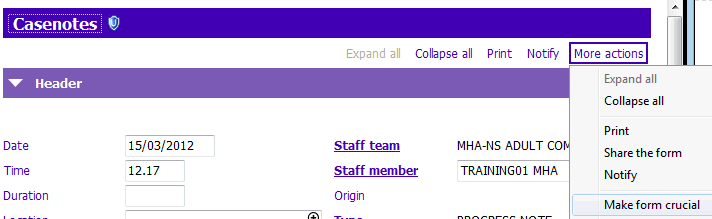
2. Choose Make form crucial from the More actions menu.
Mark Selected Text in a Casenote as Crucial Information
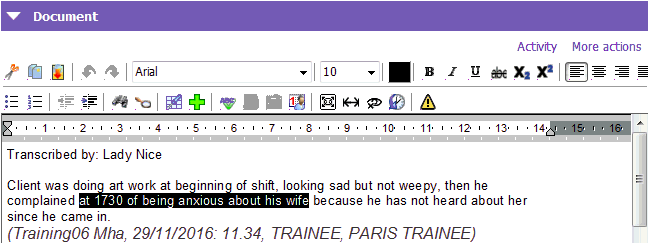
1. Select the text in the Casenotes you want to make Crucial in the Document section of the casenote.
2. Click the Crucial Icon  on the casenote Document toolbar.
3. Enter a clear message into the Crucial Comments Box.
4. Click Accept Changes, the text will appear highlighted in yellow.