Search for Campaign in Campaign Manager
Display Clients and Results Entry
Manager Tab
Consent Update Tab
Consent Letters Tab


In this Application you can: Search for a Campaign, view Campaign clients, view Campaign antigens, print Campaign letters, enter Campaign results

This section displays the campaign you are viewing. It displays the Schedule, Date, Status and School 'Immunization results entry': For help on how to record immunization results, click the Immunization Result Entry article.
Search for Campaign in Campaign Manager
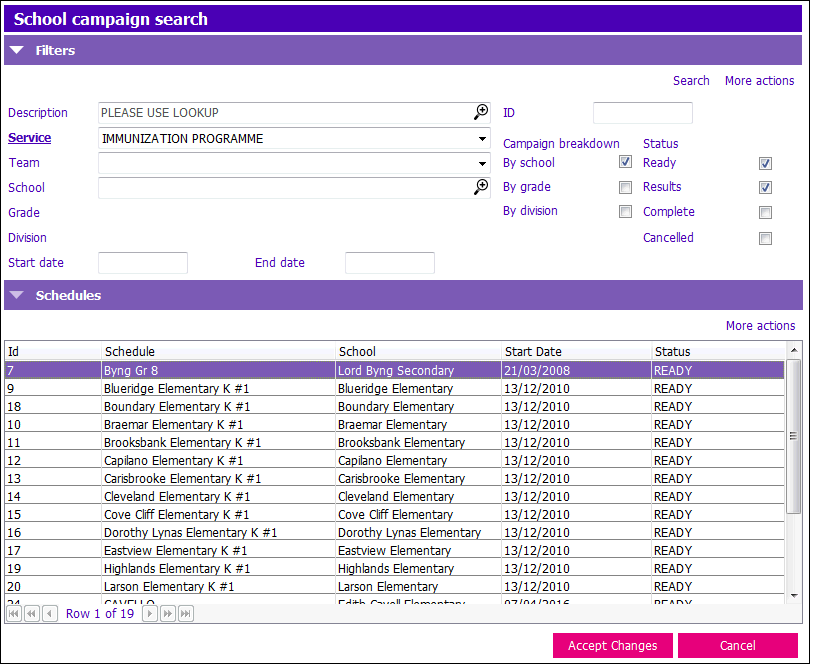
Go to Campaign Manager Application. There are numerous ways of searching for Campaigns. The most efficient way is to search by ID.
1. ID: Enter campaign ID. Press Ctrl + S or click Search for Campaigns icon - Campaign will appear in Campaigns grid
2. Description: Enter Description. Click on the magnifying glass to activate the event description picklist and click on the Campaign. Description will display.
3. Enter Team, School, Grade, Division
4. Enter Start Date and End Date of Campaign
5. Select the Status of Ready, Results, Complete, or Cancelled
Display Clients and Results Entry
1. Double-click the campaign in Schedules grid to go to Campaign Manager
OR
2. Select the Campaign in the Schedules grid to highlight row and click Accept Changes to go to Campaign Manager

This section displays immunizations client is due for, suspended, dissented, immunizations with active consent, immunizations with COP, and Active/COP
Manager Tab
Grid Buttons
1. Show Planned: Click to display immunizations client is due for
2. Person ID search: Enter PARIS ID to search for client in grid
3. School enrolment: Click to toggle to School Enrolment. Click Close once to return to Campaign Manager.
4. Medical conditions: Click to toggle to Diagnosis. Click Close once to return to Campaign Manager.
5. Go to central index: Click to toggle to Central Index. Click Close twice to return to Campaign Manager.
6. Immunization alerts: Click to toggle to Immunization Alerts. Click Close once to return to Campaign Manager.
7. Immunization profile: Click to toggle to Profile. Click Close once to return to Campaign Manager.
8. Consent record: Click to toggle to Consent application. Click Close once to return to Campaign Manager.
9. Ad hoc results entry: Click to toggle to Immunization Results Entry application. Click Close once to return to Campaign Manager.
Grid Columns
- First Column not labelled: Displays an Alert icon if client has an Alert
- Name: Displays Name, DOB & gender
- PARIS ID: Displays PARIS Identifier
- Antigens: Displays list of antigens
- Dose: Displays number of doses provided
- Result: Displays results of recording Immunizations
- Due Date: Displays date antigen was due
- Status: Displays consent status
- Grade: Displays the grade child is in
- Division: Displays the division child is in
Displaying Antigens in the Grid
- Dissented antigens appear in red text and the word 'SUSPENSION' appears in Consent Status column.
- Antigens with “Active Consent” display in green text and ‘Active’ appears in Consent Status column
- Antigens with NO signed consent display in black text, ‘COP’ appears in Consent Status column

Consent Update Tab
Grid Buttons
- Campaign consent view: Click to display planned immunizations excluding dissented and suspended antigens.
- Extended consent view: Click to display planned immunizations including dissented and suspended antigens.
- Select all: Click to activate all consents.
- Deselect all: Click to deselect all active consents.
- Person id search: Enter PARIS ID to search for client in grid
- School enrolment: Click to toggle to School Enrolment. Click Close once to return to Campaign Manager.
- Medical conditions: Click to toggle to Diagnosis. Click Close once to return to Campaign Manager.
- Go to central index: Click to toggle to Central Index. Click Close twice to return to Campaign Manager.
- Immunization alerts: Click to toggle to Immunization Alerts. Click Close once to return to Campaign Manager.
- Immunization profile: Click to toggle to Profile. Click Close once to return to Campaign Manager.
Grid Columns
- First Column not labelled: Displays an Alert icon if client has an Alert
- Name: Displays Name, DOB & gender
- PARIS ID: Displays PARIS Identifier
- Antigens: Displays list of antigens
- Dose: Displays number of doses provided
- Result: Displays results of recording Immunizations
- Due Date: Displays date antigen was due
- Status: Displays consent status
- Active Consent: Displays Active Consents
- Grade: Displays the grade child is in
- Division: Displays the division child is in

Consent Letters Tab
Before printing Consent letters click the 'Re-process campaign' button again to update the student list by validating each student’s current school location.
Grid Buttons
1. Print letters: Click to print Consent Letters.
2. Reprint view: Click to reprint Consent Letters.
3. Campaign consent view: Click to display planned immunizations excluding dissented and suspended antigens.
4. Extended consent view: Click to display planned immunizations including dissented and suspended antigens.
5. Select all: Click to print Consent Letters for all clients.
6. Deselect all: Click to deselect all clients.
7. Person id search: Enter PARIS ID to search for client in grid
8. School enrolment: Click to toggle to School Enrolment. Click Close once to return to Campaign Manager.
9. Medical conditions: Click to toggle to Diagnosis. Click Close once to return to Campaign Manager.
10. Go to central index: Click to toggle to Central Index. Click Close twice to return to Campaign Manager.
11. Immunization alerts: Click to toggle to Immunization Alerts. Click Close once to return to Campaign Manager.
Grid Columns
- First Column not labelled: Displays an Alert icon if client has an Alert
- Name: Displays Name, DOB & gender
- PARIS ID: Displays PARIS Identifier
- Antigens: Displays list of antigens
- Dose: Displays number of doses provided
- Result: Displays results of recording Immunizations
- Due Date: Displays date antigen was due
- Status: Displays consent status
- Consent Letter: Displays the list of clients who have not had their Consent Letters printed
- Grade: Displays the grade child is in
- Division: Displays the division child is in
