Campaign Set-Up
Re-Process a Campaign
Cancel a Campaign
Print Campaign Consent Letter

The Campaign Set-Up Application allows the user to schedule clients who are due for immunizations at specific schools. Also see Set up Screening Campaigns and Create New Campaign.
Campaign Set-Up
This section displays a list of campaigns that are scheduled, completed, cancelled, etc. The default view displays only scheduled Campaigns.
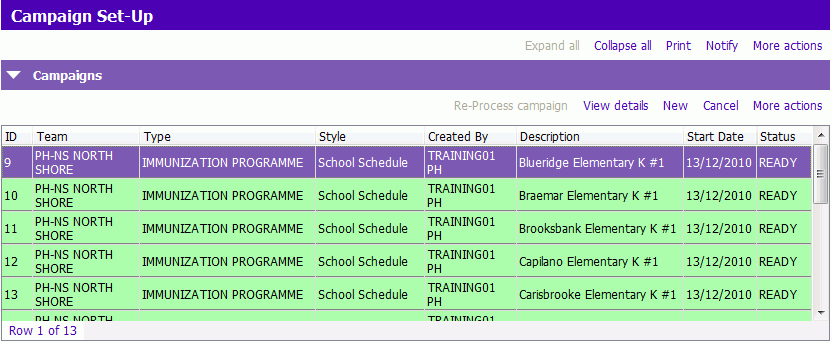 Click on More actions and select Historic filter to view historic Campaigns.
- READY – no results entered, campaign is set up
- RESULTS - Some “results” have been entered but entry is incomplete
- COMPLETE - All results have been entered
- CANCELLED - Campaign has been cancelled
- RUNNING - Campaign set up is running
- PENDING – Campaign has not been processed
To re-process Campaign, click the Re-process campaign button.
To view details of the Campaign, click the View details button or double click the appropriate Campaign.
To cancel a Campaign, click the Cancel button.
Re-Process a Campaign
New Campaigns auto-processes at noon (12:00PM) or in 5 minutes after saving.
You can force the “PENDING” status to change to “READY”:
1. Click the Re-process campaign button, a Confirm window appears “This action may take a long time. Are you sure you want to process this campaign?”. Click Yes.
2. Campaign status changes to "READY" and the grid row is highlighted green
- Once a Campaign has processed and has a status of "READY", nothing can be edited or changed
Cancel a Campaign
You can cancel a campaign if it is “READY” or "PENDING".
You can’t cancel campaigns once you’ve started to enter results
1. In the Campaigns grid, click on the Campaign you want to cancel.
2. Click Cancel.
3. A confirmation window appears "There are clients scheduled on this campaign. Confirm cancellation? Click Yes. The campaign status changes to "CANCELLED" and you can find it by clicking More Actions and selecting Historic Filter
Print Campaign Consent Letter
Before printing Consent letters click the Re-process campaign button again to update the student list by validating each student’s current school location.