Generate a Letter
Store (Save) the Letter
Print the Letter

Letters for Home Health should only be created from Referrals and Assessments, as the letters contain information found directly in those applications. For example, a Medication letter should only be generated from Assessments and the Palliative GP letters should only be generated from the Palliative Register.
It is not recommended to generate letters from the Letters Management application because some client information will not populate the letter correctly.
Generate a Letter
1. Search for and select the appropriate Client record in PARIS.
2. To generate a Home Health letter, open the appropriate Referral or Assessment from their respective applications.
3. Click on the Generate letter button in the navigation bar found near the top of the screen.

4. Choose the appropriate letter to be generated and click the Select button.

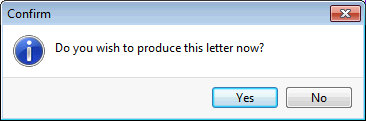
5. Click Yes to the confirmation pop-up.
NOTE: It may take a moment for the letter to produce.
6. Decide whether you would like to store this letter against a particular team.
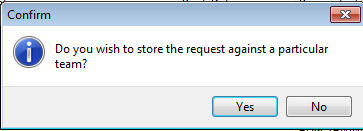
If you select Yes you can store the request against a team you belong to. Selecting No will not prevent you from producing the letter, nor will it affect the information being pulled from the client record into the letter.
7. The letter template will open. Modify the letter by adding new text or editing pre-existing text as needed.
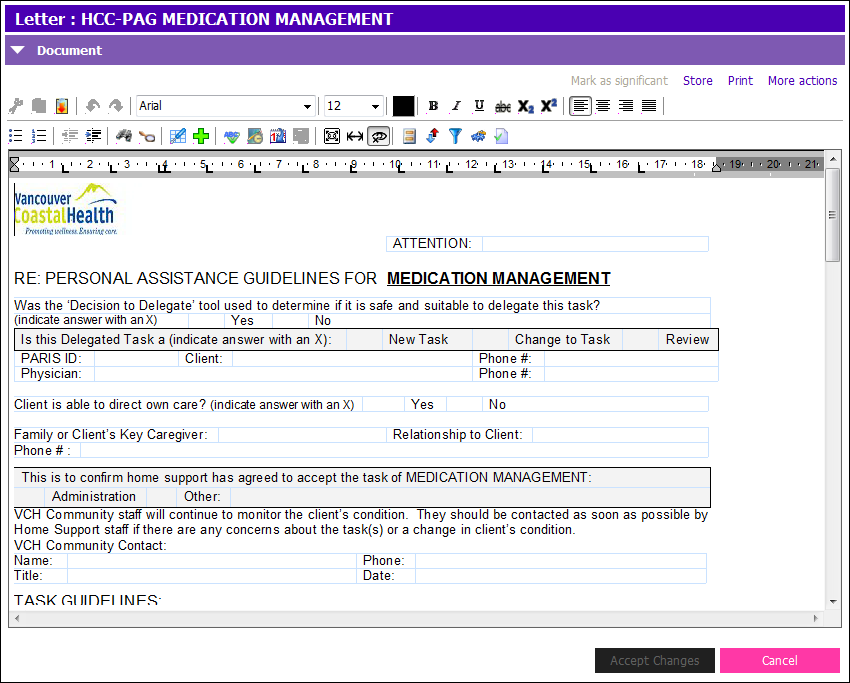
8. Click the Accept Changes button.
Store (Save) the Letter
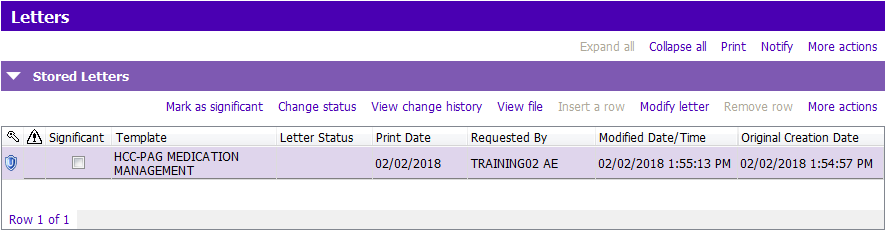
Storing the letter saves it to the client’s PARIS record, and it can be accessed at a later date in the Stored Letters grid of the Letters Application.
Click Store to save it to save the letter to the database.

Print the Letter
The letter must be stored (saved) before it can be printed. Once edits are made, click on the Store button found in the top right hand corner of the letter. This will save any edits made in the letter.
1. Click the Print button found in the top right hand corner of the letter.

2. Choose the correct printer.
3. Once the letter is printed, click on the cancel button found in the lower right hand corner to close the letter.
Note: Once the letter has been printed, a print date will appear under the Print Date in the Stored Letters Grid
Related Links
MHSU Letters and Descriptions
Public Health Letters and Descriptions