View Crucial Information
Remove Crucial Information
All items marked Crucial for a client can be viewed in the Crucial Information application, located in the Client Info group tile. You can also remove the Crucial Information indicator from this application.
View Crucial Information
1. Click on the Crucial Information application in the Client Info tile.
2. Click on Crucial Item row you want to view (In this case 'Assessments- ENTERED IN ERROR'). This highlights the item in the list of Crucial Items displayed.
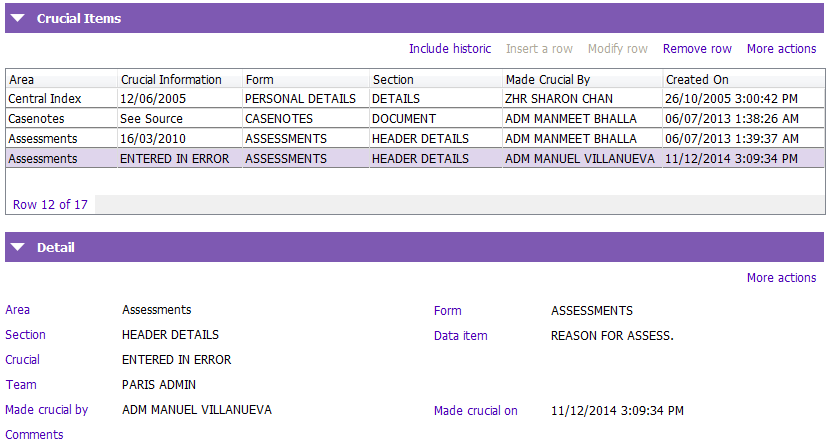
1. Scroll to Details section. The Details section displays (shown above):
- Section: PARIS application/section where information was marked Crucial
- Marked crucial by: Name of the person who created the crucial information
- Made crucial on: The date the information was made Crucial
- Comments: The notes and comments about the crucial information
2. Click the  button in the Crucial Information toolbar near the top left of the page to navigate to the application and form where information was marked Crucial.
Remove Crucial Information
1. Click on the Crucial Information application in the Client Info tile.
2. Click on the row that you wish to remove, to highlight it.
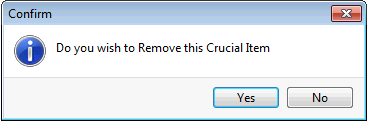
3. Click Remove row and a confirm screen appears.
4. Click Yes, and the item is removed and saved upon clicking Yes.
5. The item will no longer be highlighted yellow or marked as Crucial and Crucial comments will not be visible.