Enter a Diagnosis
Search for Diagnosis
Diagnosis Entered in Error


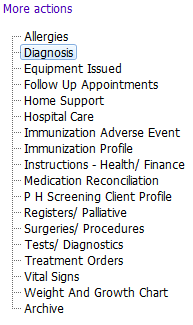


Diagnoses are entered in the Diagnosis grid and can be entered in two places in PARIS:
1. In the clinical Summary under 'Diagnosis'.
2. In any assessment that has the Diagnosis grid within the assessment (MDS-HC, Intake Screener v2).
All diagnoses entered in assessments autopopulate into the Clinical Summary Diagnosis grid, which is like a ‘master’ Diagnosis grid. When entering diagnoses via an assessment you cannot see diagnoses that already exist in Clinical Summary.
 NOTE: NOTE:To ensure the diagnosis is not copied repeatedly, CHECK THE CLINICAL SUMMARY FIRST to see if it has been entered. If not, enter the diagnosis from the Clinical Summary. |
- When the diagnosis is entered in the Assessment, it autopopulates to the Clinical Summary.
- When the diagnosis is entered through the Clinical Summary, it does not autopopulate into an assessment.
The Assessment is a ‘point in time’ snapshot. Generally only new or updated Diagnoses should be entered here. Refer to your program’s guidelines regarding all diagnoses that must be entered into a specific assessment (for example, if it is faxed to a physician or other provider).
Enter a Diagnosis
1. Check to see if the diagnosis is entered into Clinical Summary. When it is not then click Insert a row.
OR
Go to the Diagnosis grid in the assessment and click Insert a Row.
2. When you belong to more than one team the owner key lookup displays. Select your team and click Accept Changes.
3. When you only belong to one team, the Diagnosis- entry window displays.
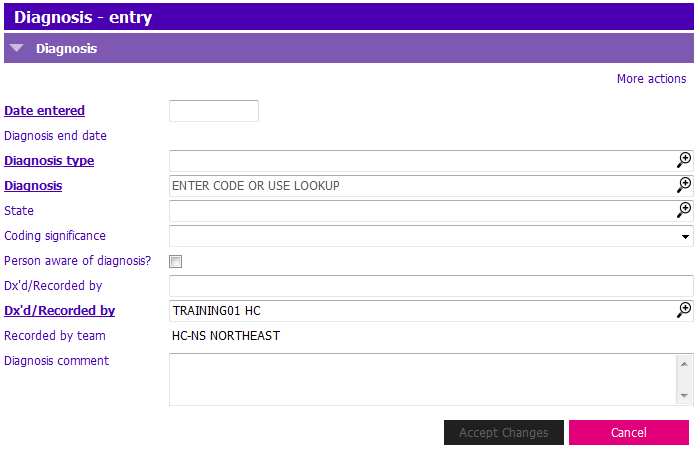 4. Enter the following fields:
- Date Entered: Enter date of diagnosis (you may have to use estimated dates) Only use Ctrl +T if the diagnosis was confirmed today
- NOTE: Date entered should be date that the client was diagnosed as it will populate in the grid as Diagnosis Date.
- If date is unknown use estimated dates, for example if you know the year of Dx is 2002 enter 01/01/2002.
- If you know the month and the year, for example May, 2002 you would enter 01/05/2002.
- NOTE: Date entered should be date that the client was diagnosed as it will populate in the grid as Diagnosis Date.
When the diagnosis code is known:
- Enter the code directly into the Diagnosis field, do not enter a Diagnosis Type, or activate the picklist by clicking
 or pressing F4.
When the diagnosis code is NOT known
- Diagnosis Type: Select the appropriate one from the picklist, or leave blank to broaden your search.
- Diagnosis: Click the or press F4 to launch Diagnosis Search screen
- In the Diagnosis field enter a word or partial word and click search.
- Example: For COPD, search using the word pulmonary. See your program's guidelines for more information
- NOTE: Keep your search as general as possible without losing the meaning. The search looks for exactly what was typed so, for example, when looking for depression, all DSM DX are listed as Depressive Disorder. Typing the full word “depression” would not bring up all the depressive disorders listed.
5. Select Diagnosis from the Search Results.
 TIP: If no results or the diagnosis you wanted doesn’t appear; revise your search by either using another word or a partial word. TIP: If no results or the diagnosis you wanted doesn’t appear; revise your search by either using another word or a partial word. |
6. Selecting a Diagnosis returns you to the Diagnosis Entry window and enter the following fields:
- State: Click the to launch the picklist Select an appropriate State. Do NOT leave blank.
- Coding significance: If you use this field click the down arrow or begin typing in the field and select the appropriate entry.
- Person aware of diagnosis?: Enter a tick mark if the person is aware of the diagnosis if applicable to your program.
- Dx'd/Recorded by and Recorded by team: are both defaulted in for you.
- Diagnosis comment: Enter comments as needed to clarify information about the diagnosis (max. 100 characters).
7. Click Accept Changes & F12 to Save. Repeat steps to enter additional diagnoses."
Search for Diagnosis
SEARCHING FOR DIAGNOSIS LOOKS THE SAME FROM EITHER ASSESSMENT OR CLINICAL SUMMARY
When you know the Diagnosis Code (e.g., Type 2 Diabetes Mellitus is XE11901), enter the code (XE11901) directly into the Diagnosis field, tab, and the diagnosis (Type 2 Diabetes Mellitus) and the Diagnosis type will autopopulate.
When you don’t know the Diagnosis Code, you are likely to be searching through the ‘Diagnosis’ Field. There are a couple of ways to do this more efficiently
SEARCH TIPS
- Unless you know the ‘Diagnosis Type’ you are using (DSM-IV, ICD 10, etc.), DON'T put it in when searching; it will limit your options.
- When putting information into the ‘Diagnosis’ field, put a few letters in rather than the entire word. Because different Diagnosis Types use different wording for a diagnosis, you could miss the diagnosis you are looking for. For example, depression can be ‘depression’ in ICD 10, but is ‘Depressive’ in DSM-IV.
- When typing in a diagnosis that includes an apostrophe (Parkinson’s, Alzheimer’s Diseases), DON’T type the apostrophe.
- Some terms can be interchangeable or are referred to in a way you aren’t used to
- Lung – Can use ‘Lung’ or ‘Pulmonary’; ‘Lung’ helps with searches related to cancer diagnosis, ‘Pulmonary’ is better for respiratory diagnoses
- Colon – Can use ‘Bowel’ or ‘Colon’; ‘Bowel’ for general diagnoses, ‘Colon’ for searches related to cancer diagnoses
- Kidney – Generally ‘Kidney’ in ICD 9, but ‘Renal’ in ICD 10
- Heart – Can use ‘Heart’ or ‘Cardiac’; can use ‘Congestive’ for CHF
- Brain – Can use ‘Brain’ or 'Neuro’; ‘Neuro’ better for general diagnoses, ‘Brain’ better for searches related to cancer
- Cancer – Use ‘Carcinoma’ or use area affected (e.g. ‘rectum’ for rectal cancer)
- AIDS – Can use ‘AIDS’ or ‘HIV’
- Edema – Spelled ‘Edema’ or ‘Oedema’
- Vision – Use ‘Eyes’ for easier search
- Hearing, Use ‘Hearing’ for easier search
Diagnosis Entered in Error
All grids in Clinical Summary with the exception of Diagnosis & Allergies have an Entered in Error tick box.
- Entries marked ‘Entered in Error’, will NOT print on reports and will NOT be counted for MRR.
- Click Incorrect diagnosis in diagnosis grid
- Click on Modify row
- Click on STATE and select Entered in Error
- Press Enter & F12 to Save
If an incorrect diagnosis was entered from a closed Assessment, please contact the PARIS User Help desk for assistance in entering it in error.